
Animation can become a time sink quickly. You start with a tiny character, add one extra frame, adjust the timing, fix the outline, and suddenly the simple blob has turned into a whole production.
WigglyPaint is built for a different mood. Draw a line once and the brush gives it a little motion for you. It will not replace hand-keyed animation, and it is not trying to. It is better for quick doodles, little mascots, sticker-like GIFs, and the kind of pixel art that benefits from a handmade wobble.
Start With a Small Shape
The easiest first project is not a character sheet. It is one readable shape: a star, a heart, a blob, a plant, a tiny ghost, or a round cat face.
Keep the silhouette simple. Since the lines are moving, too many tiny details can blur together. A strong outline, two or three interior marks, and one good color choice usually look better than a busy drawing with perfect intentions.
Pick a Brush for Personality
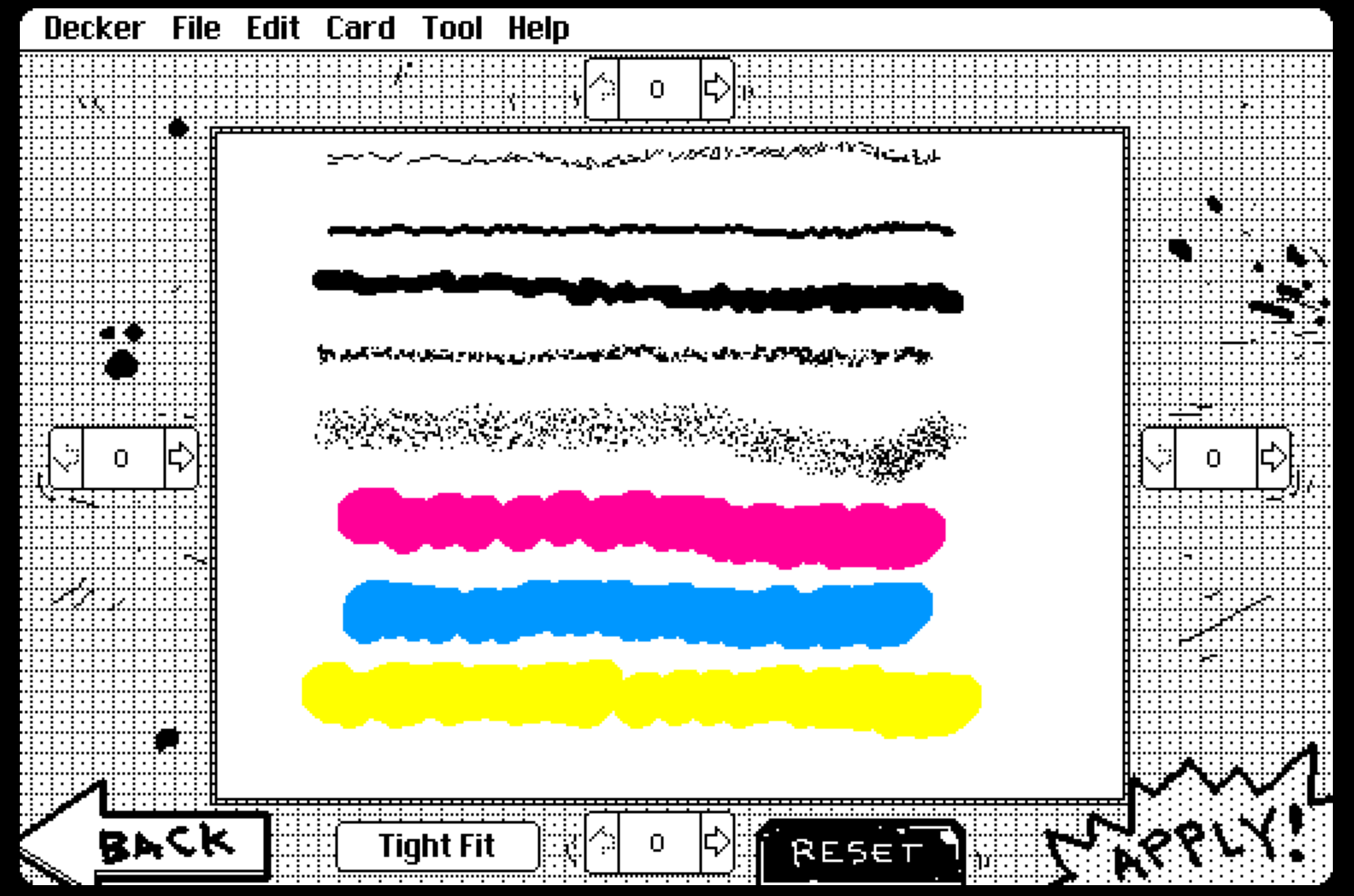
The brushes in WigglyPaint are less like neutral pens and more like little motion presets. Some feel calm and jittery. Some wobble more loudly. Try each brush with the same shape before you commit.
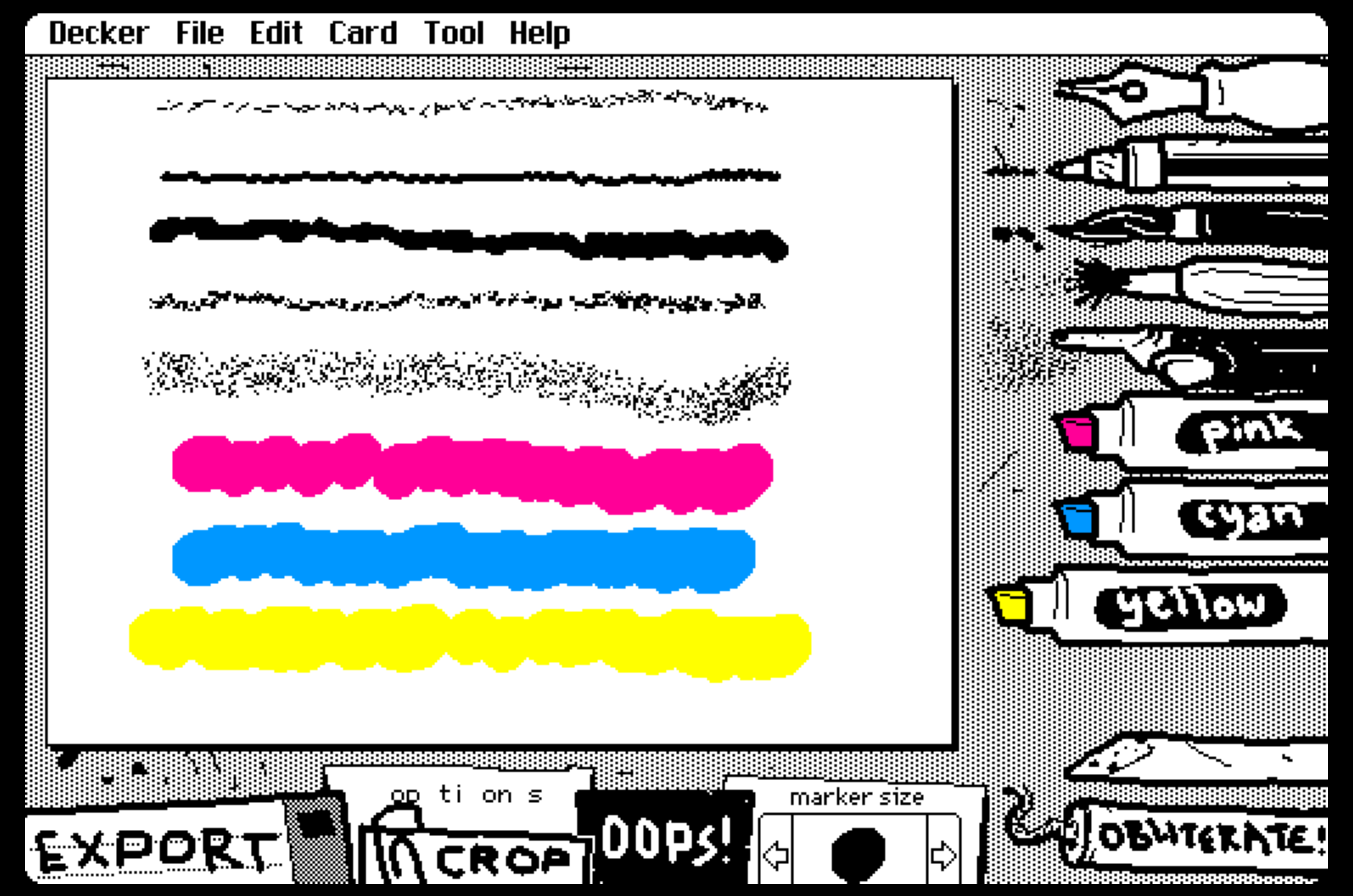
For cute pixel art, I usually start with a thicker brush for the outer shape, then switch to a smaller size for eyes, blush, sparkles, or a tiny mouth. That keeps the drawing readable once it starts moving.
Use the Background as Part of the Drawing
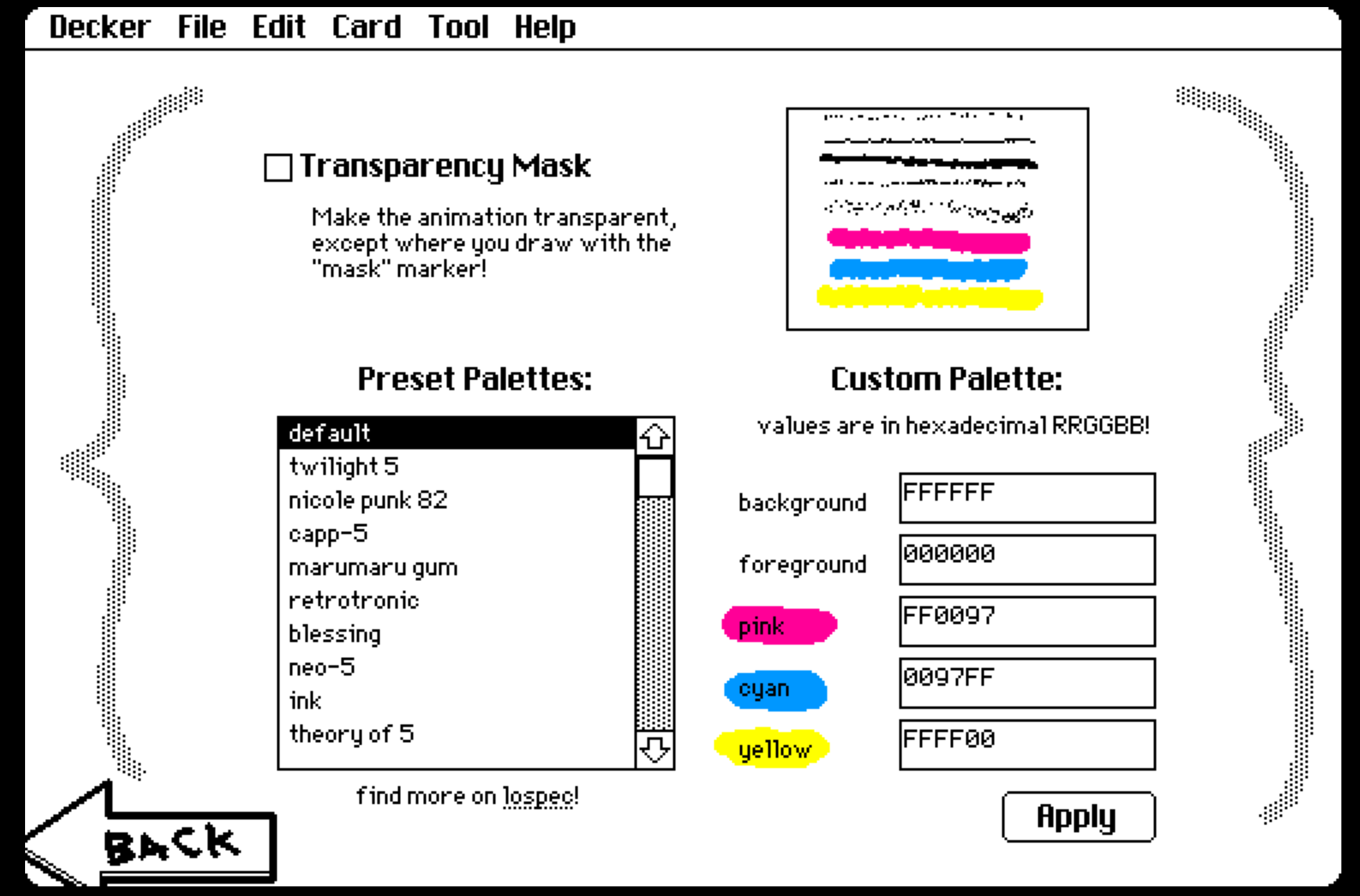
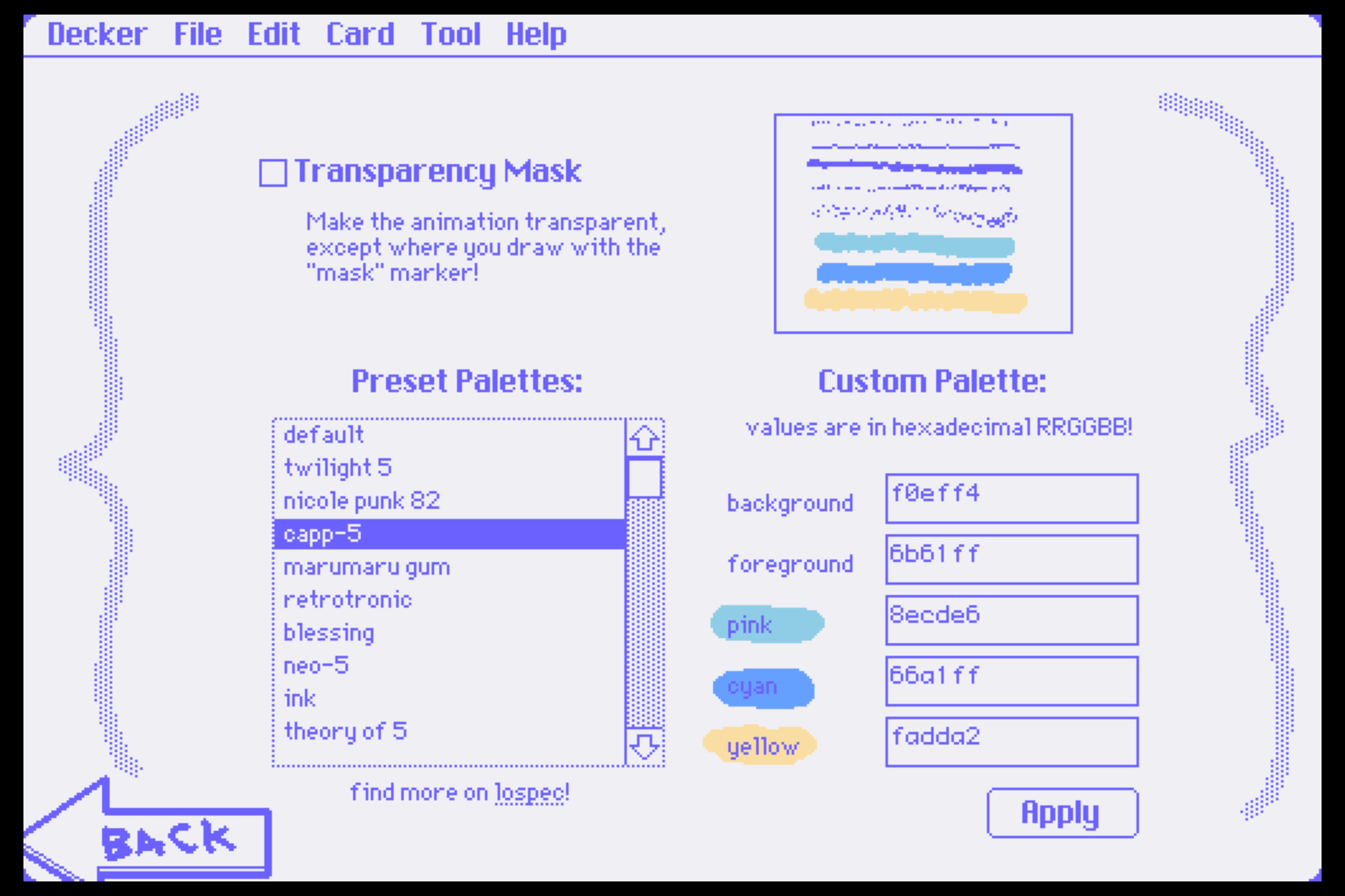
The background color matters more than it first appears. A soft green background can make a pink character feel sweet. A dark violet background can make little yellow stars pop. If your GIF looks muddy, do not redraw everything yet. Change the background first.
Keep the Motion Clean
Here is the small rule that helps most: let one part of the drawing be the star.
If every line is equally loud, the animation can feel noisy. Try making the outline bold and the inner details sparse. Or keep the character still-ish and add a few sparkling dots around it. The point is not to show every feature. The point is to make the drawing feel alive.
Try this
Draw a round blob with one brush, then add only two eyes and one highlight. Export it. Now add five more details and export again. The simpler one will often read better at sticker size.
Crop Before You Export
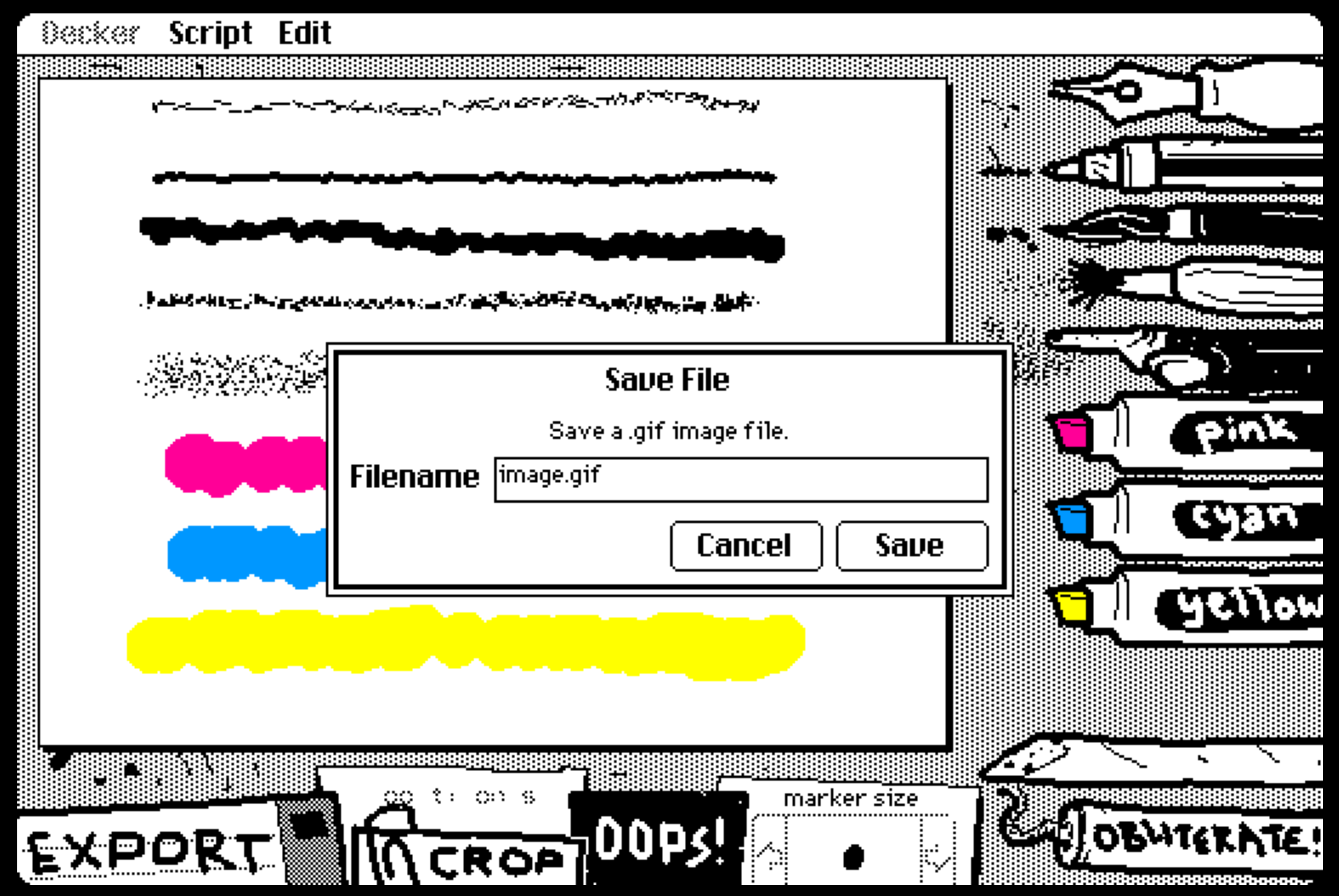
The crop tool is worth the extra few seconds. A little breathing room around the drawing makes the GIF easier to use in chats, profile images, and posts.
Once the frame feels right, export the GIF. No timeline cleanup, no render settings, no mysterious codec choices.
Good First Ideas
- A jelly blob with a sleepy face
- A two-color flower in a tiny pot
- Three sparkles on a dark background
- A round cat head with one blinking-looking mark
- A ghost that looks more friendly than spooky
The Best Use of WigglyPaint
Use it when you want motion without ceremony. Make one small thing, export it, share it, then make another. That loop is the charm of the tool.
Stop polishing the idea before it exists
Open a blank canvas, draw a tiny shape, and let the brush do some of the moving.
Try WigglyPaint for Free