
The best drawing website is not always the one with the most buttons. It is the one that lets you make the kind of picture you have in mind without turning a small idea into a software project.
We opened and checked ten free drawing websites in July 2026. Every main pick below lets you create something in a web browser. We left downloadable-only software, tutorial sites, art marketplaces, and drawing games out of the ranking so that this remains a guide to websites you can actually draw on.
For readers comparing free drawing sites online, the important differences are not just brush count. We checked whether you can draw in a browser immediately, keep control of your work, and export a useful file without turning a quick sketch into a setup project.
The short version: use WigglyPaint for animated lines and instant GIFs, Kleki or KRESKA.art for painting, Magma for drawing with other people, Pixilart for pixel art, and Method Draw for SVG work.
How this guide is funded
This article is published by the WigglyPaint team, and WigglyPaint is one of the products reviewed. We applied the same checklist to every tool, included real limitations, and use no affiliate links.
The Best Drawing Websites at a Glance
| Drawing website | Best for | Start without an account | Standout capability |
|---|---|---|---|
| WigglyPaint | Animated doodles and GIFs | Yes | Lines move as you draw |
| Kleki | Simple online painting | Yes | Natural brushes and layers |
| KRESKA.art | Natural-media brushes | Yes | Large brush library and reference tools |
| Sketchpad | General-purpose drawing | Yes | Shapes, text, and broad export options |
| Magma | Collaborative drawing | Limited guest access | Shared real-time canvases |
| AutoDraw | Fast, tidy doodles | Yes | Machine-learning shape suggestions |
| Pixilart | Pixel art and sprites | Yes; account needed for online saving | Frames, layers, and pixel tools |
| Excalidraw | Diagrams and visual notes | Yes | Infinite canvas and collaboration |
| Method Draw | Vector and SVG drawing | Yes | Direct browser-based SVG editing |
| Brush Ninja | Frame-by-frame animation | Yes | Simple GIF timeline |
How We Checked These Online Drawing Websites
We used the live public version of each website in a desktop browser. We checked whether the editor opened without an installation, whether drawing could begin without creating an account, what kind of canvas and controls appeared, and how the tool handled saving, exporting, animation, or collaboration where those features were available.
We also looked for the things that matter after the first minute: layers, undo, brush control, canvas navigation, account prompts, and a clear route for getting work out of the tool. Because free plans and browser support change, treat this as a dated July 2026 check rather than a promise that every limit will remain the same forever.
We did not assign artificial scores such as 9.4/10. These drawing sites solve different problems, so each pick has a specific “best for” label, along with a reason to choose it and a reason to skip it.
The 10 Best Drawing Websites in 2026
1. WigglyPaint — Best for Animated Drawings and Instant GIFs
Quick facts: Free browser drawing · No account needed for the core canvas · Animated brushes · GIF and video export
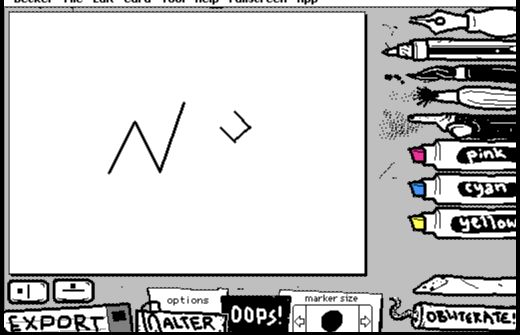
WigglyPaint is the most unusual animated drawing website in this list. Instead of asking you to build an animation frame by frame, its brushes add motion to the marks themselves. Draw a line once and it wiggles. That makes the tool especially good for lively doodles, reaction images, small characters, animated stickers, memes, and social posts.
The editor deliberately feels playful rather than professional. You get a compact canvas, a set of brushes with different movement personalities, bright marker colors, background controls, cropping, and a direct export workflow. There is no long onboarding sequence between opening the tool and making the first mark.
That simplicity is also the limitation. WigglyPaint is not trying to replace a layered painting studio, vector editor, or precise frame-by-frame animation package. Choose another tool if your project depends on complex layer management, accurate paths, or detailed image retouching.
Best if: You want a drawing to feel alive quickly, without learning a timeline.
Skip if: You need a conventional professional painting or vector workflow.
Make a line move
Open the WigglyPaint canvas, draw a small shape, and export your first animated doodle.
Try WigglyPaint for Free2. Kleki — Best for Simple Online Painting
Quick facts: Free browser editor · Starts without an account · Layers · Natural-feeling brush controls
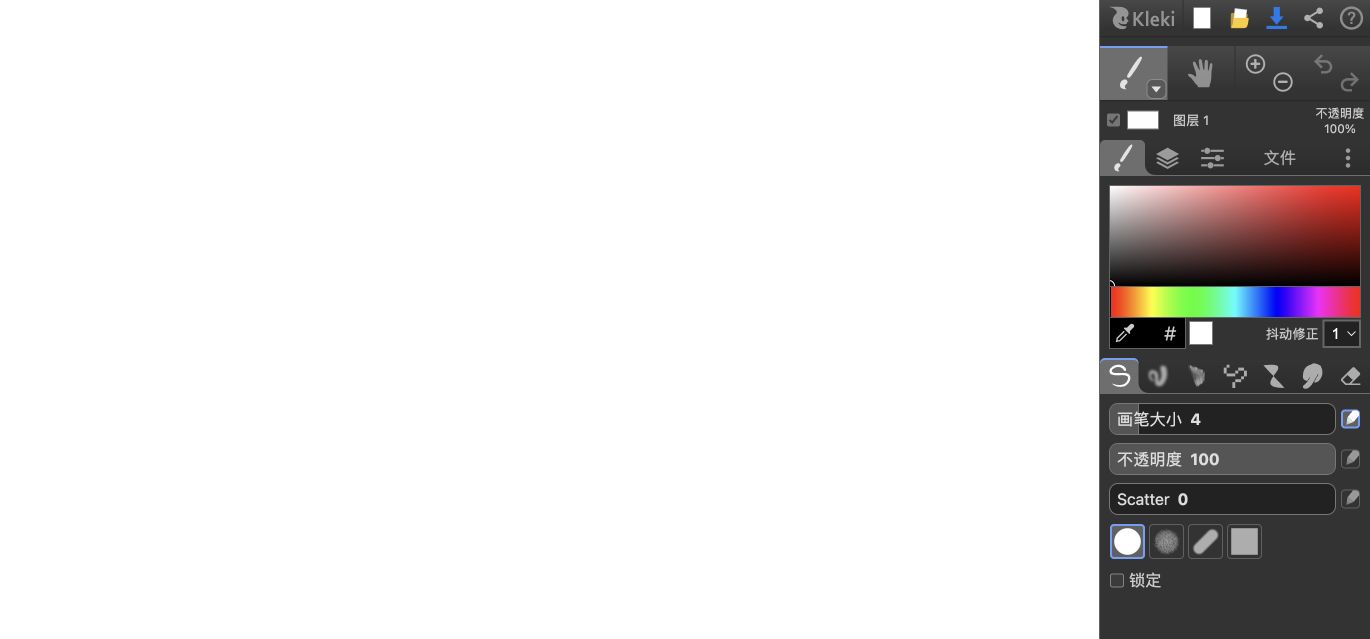
Kleki is a strong answer when “drawing website” means a lightweight painting program rather than a whiteboard. The interface opens directly onto a large canvas with brush, color, layer, zoom, undo, and file controls already visible. It feels much closer to a small desktop paint application than to a toy sketchpad.
The tool is particularly approachable for quick studies and casual digital painting. Layers make it possible to separate a sketch from color or add an imported image without flattening the whole project immediately. Brush size, opacity, stabilizing, and several brush types are accessible without filling the screen with floating panels.
The trade-off is project continuity. Kleki is excellent for work you plan to export, but it does not provide the same cloud-library experience as an account-based art platform. Make a habit of downloading your work and preserving an editable copy when the project matters.
Best if: You want layers and real painting controls without installing software.
Skip if: You need a cloud workspace that follows you across many devices.
3. KRESKA.art — Best for Natural Brushes and Reference Drawing
Quick facts: Free web app · No installation · Layers and reference tools · 180+ listed brushes
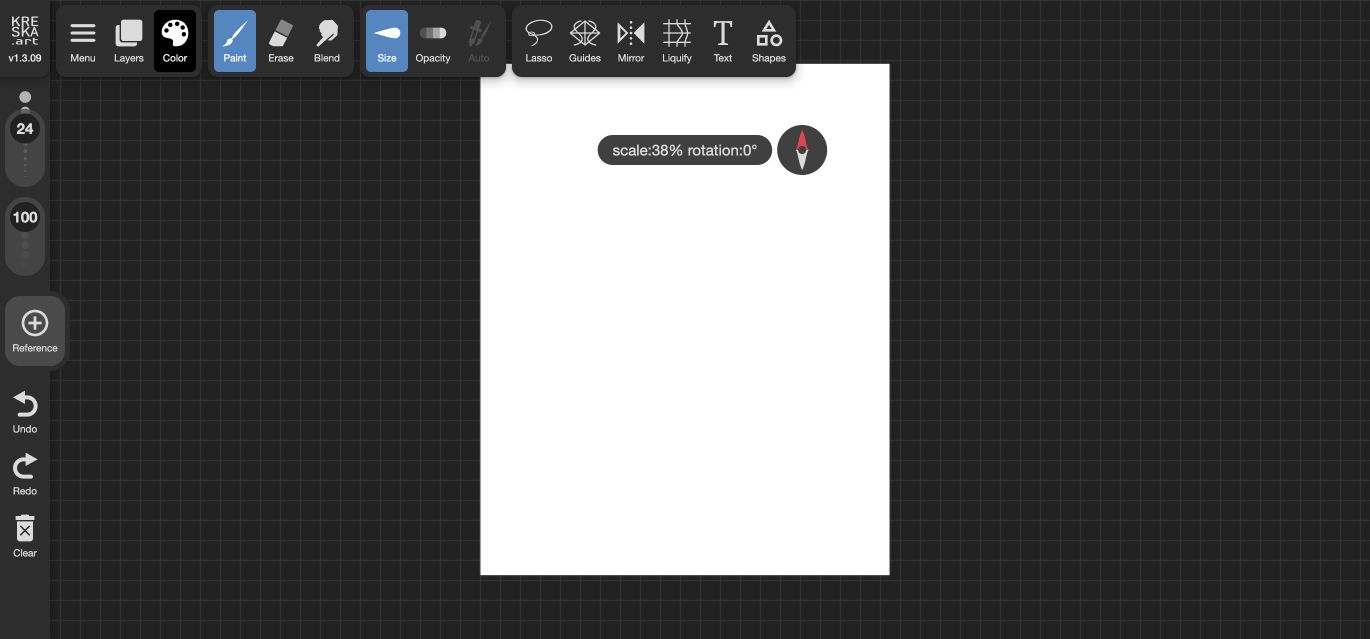
KRESKA.art is the most painting-focused free drawing website in this group. Its public editor exposes layers, color controls, brush size and opacity, guides, mirroring, text, shapes, a reference-image workflow, and tools such as blend and liquify. The product also lists more than 180 brushes across categories including charcoal, watercolor, inking, pixel, calligraphy, and texture effects.
That breadth makes KRESKA a better fit than a basic sketchpad for artists who care about the character of a brush. Reference controls are another meaningful difference: the workflow is designed around keeping an image nearby, adjusting its visibility, and sampling from it while drawing.
The interface is busier than Kleki or AutoDraw, and a first-time user will need a few minutes to understand the tool groups. It is not the pick for a ten-second doodle.
Best if: You want natural-media variety, references, and deeper painting controls in a browser.
Skip if: You want the smallest possible interface or instant animation.
4. Sketchpad — Best All-Round Drawing Website
Quick facts: Browser-based editor · Drawing, shapes, text, and clip art · Layer controls · Static export options
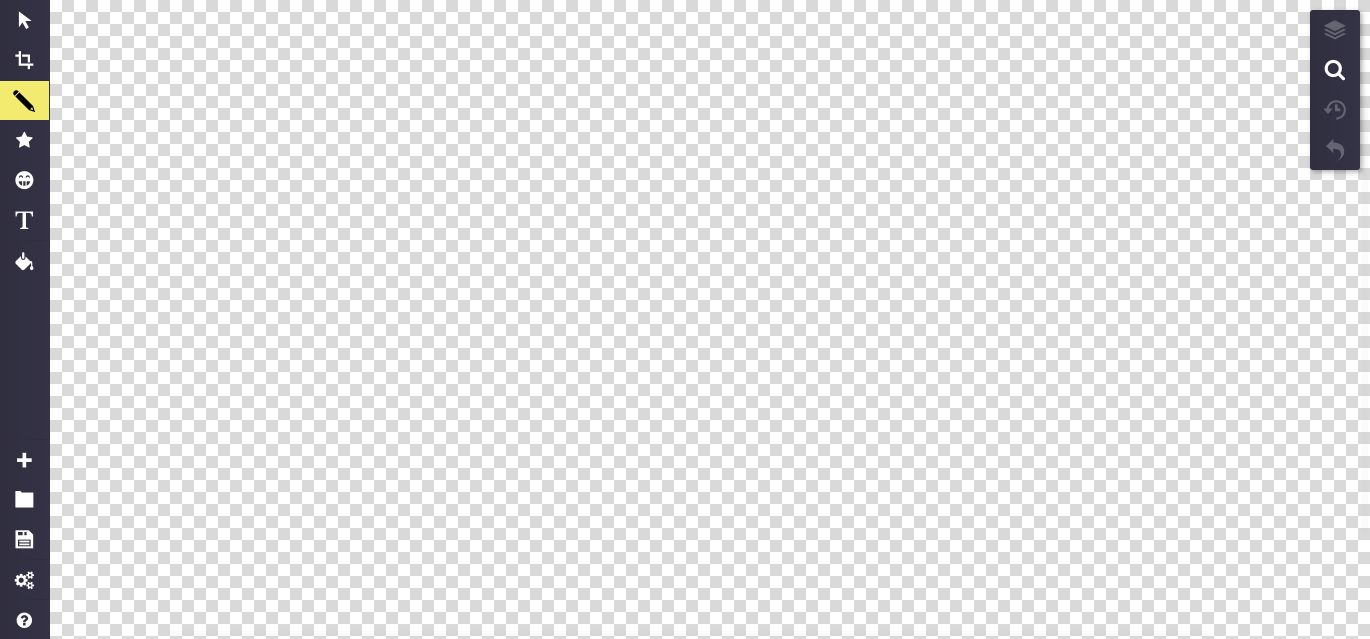
Sketchpad is the broad generalist. It combines pencil-style drawing with shapes, stamps, text, fill tools, cropping, layers, and image import. The large central canvas and icon-based toolbars make it possible to start simply, then add more structured elements as the project grows.
It is a practical choice for posters, classroom graphics, simple illustrations, social images, and mixed projects that are not purely digital painting. Support for common static formats, including PNG, JPEG, SVG, and PDF, is useful when the final file needs to move into another document or design workflow.
The cost of that flexibility is interface density. Some controls sit behind icons and submenus, so Sketchpad is not as immediately obvious as AutoDraw and not as focused as Kleki.
Best if: You need one browser tool for drawing, shapes, text, and common exports.
Skip if: You mainly want natural painting brushes or moving artwork.
5. Magma — Best for Drawing Together Online
Quick facts: Shared canvases · Real-time collaboration · Artist-focused rooms and communities · Account features
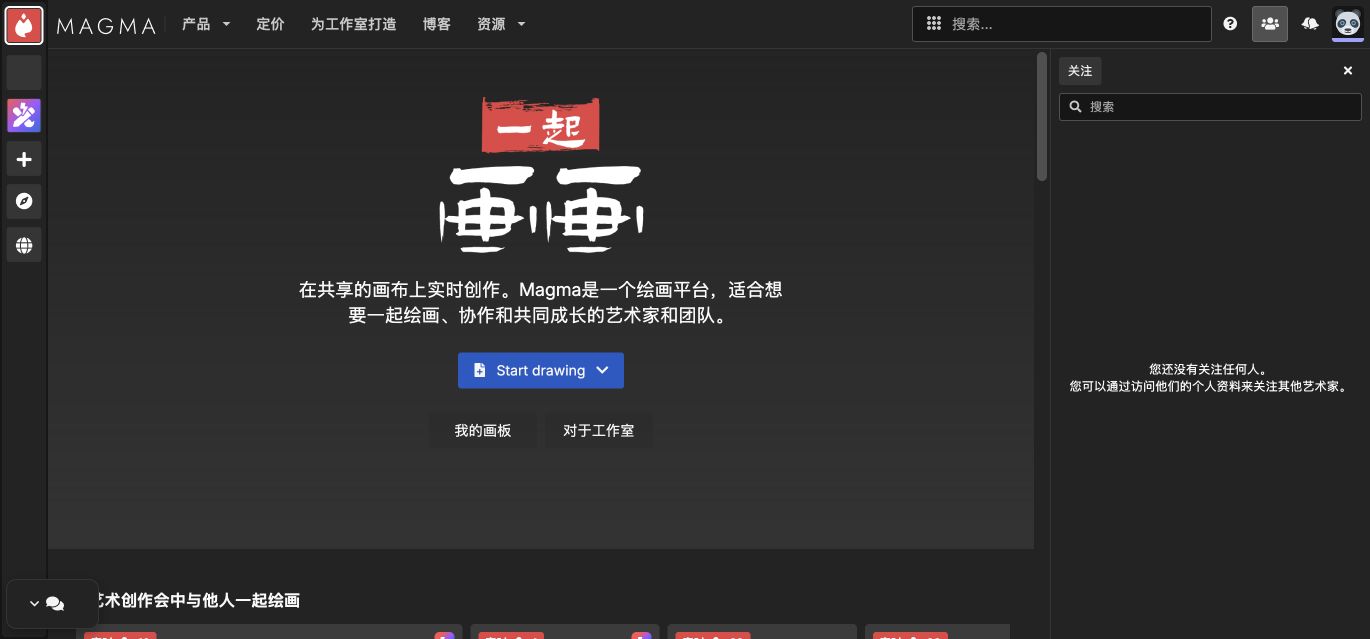
Magma is for the moment when “draw online” also means “draw with someone else.” It is the clearest choice here when you want to draw together online through real-time shared canvases, links, art sessions, and spaces where multiple people can contribute. That makes it better suited to remote art jams, feedback sessions, classrooms, and friend groups than a single-user paint page.
Instead of exporting a file, sending it, waiting for edits, and importing it again, participants can work in the same visual space. Magma also feels more artist-oriented than a business whiteboard: the goal is making images together, not arranging sticky notes.
The drawback is friction. Shared rooms, saved work, permissions, and community features naturally bring more account and workspace decisions than an anonymous local canvas. If you only need to make one private doodle, Magma is more platform than necessary.
Best if: The people drawing with you matter as much as the brush set.
Skip if: You want a private, instant canvas with no workspace setup.
6. AutoDraw — Best for Fast AI-Assisted Doodles
Quick facts: Free · Starts without an account · Shape suggestions · Simple PNG download
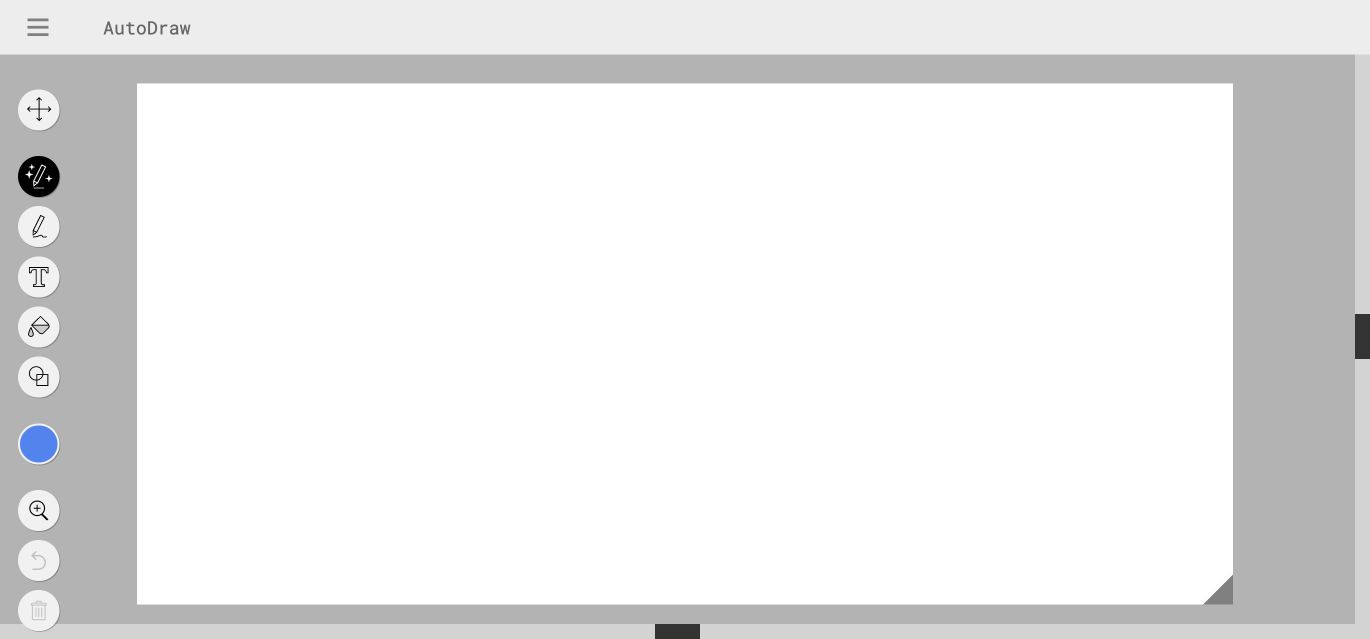
AutoDraw is designed for people who need a readable picture more than a personal brush style. Start a rough doodle with the AutoDraw tool and the system suggests clean icons that resemble what it thinks you are drawing. You can also use a normal pencil, text, fill, shapes, selection, color, zoom, and undo.
The result is fast and useful for signs, worksheets, slides, simple diagrams, and visual notes. It is one of the easiest free drawing sites online for a person who says, “I cannot draw, but I need a recognizable bicycle in the next thirty seconds.”
The same assistance creates its limitation. Suggested art looks neat but less personal, and the editor does not aim to provide layers, advanced brushes, or detailed painting controls. It helps you communicate an object; it does not try to simulate paint.
Best if: You want a quick, tidy icon or diagram and drawing confidence is not the point.
Skip if: You want expressive brushes, layers, or an original illustrated style.
7. Pixilart — Best for Pixel Art, Sprites, and GIF Frames
Quick facts: Free editor access · Pixel-focused tools · Layers and frames · PNG, GIF, sprite, and video options
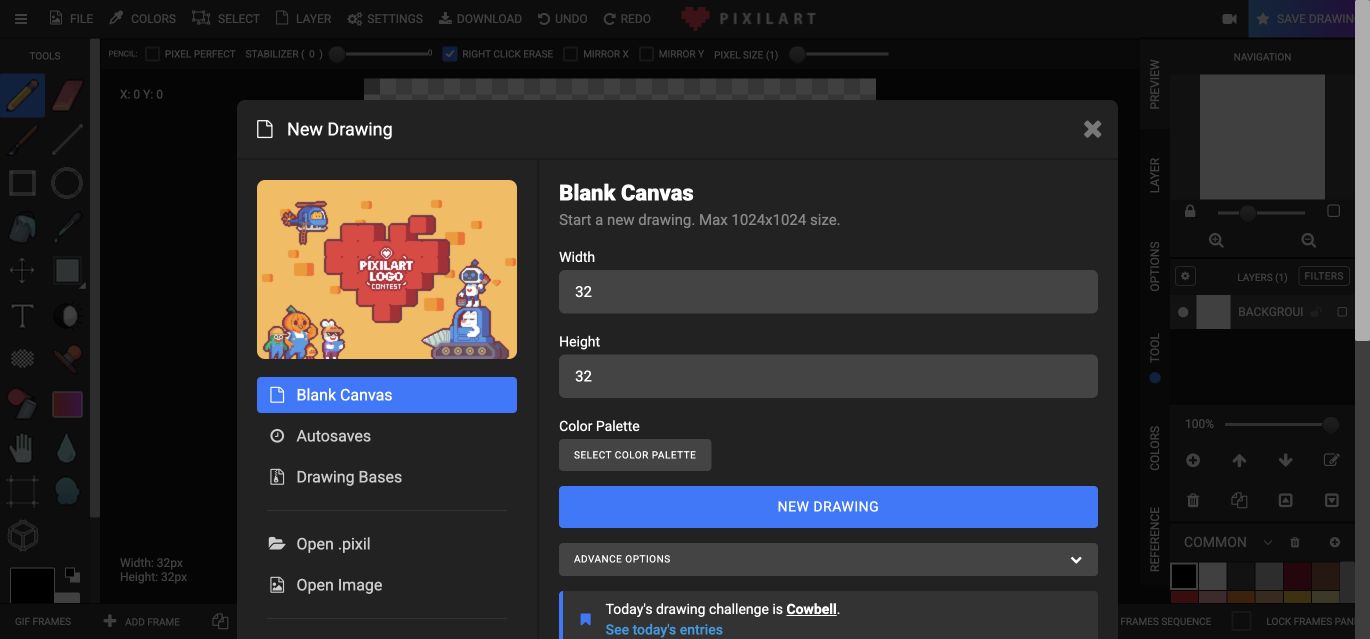
Pixilart is not a general paint page with a pixel brush added at the end. It is a purpose-built pixel art maker online, organized around pixel-level work: a small grid, hard-edged tools, palettes, layer controls, frame management, previews, dithering, mirroring, stamps, and export sizes that preserve the look of pixel art.
It is the strongest online pixel art tool here for game sprites, icons, avatars, retro scenes, and conventional frame-based pixel animation. The ability to add frames and preview a sequence separates it from static editors. The platform also offers community and online-saving features for users who create an account.
There is a lot on screen. New users see more controls than they would in AutoDraw or WigglyPaint, and a tiny canvas can feel awkward until zoom and grid settings make sense. Online saving and social features also belong to the account side of the product, even though the editor itself can be opened before signing in.
Best if: Every pixel matters, or you need sprites and frame-based GIFs.
Skip if: You want soft natural brushes or a large freehand canvas.
8. Excalidraw — Best for Diagrams and Visual Notes
Quick facts: Free open editor · No account required for the basic canvas · Infinite canvas · Collaboration and file export
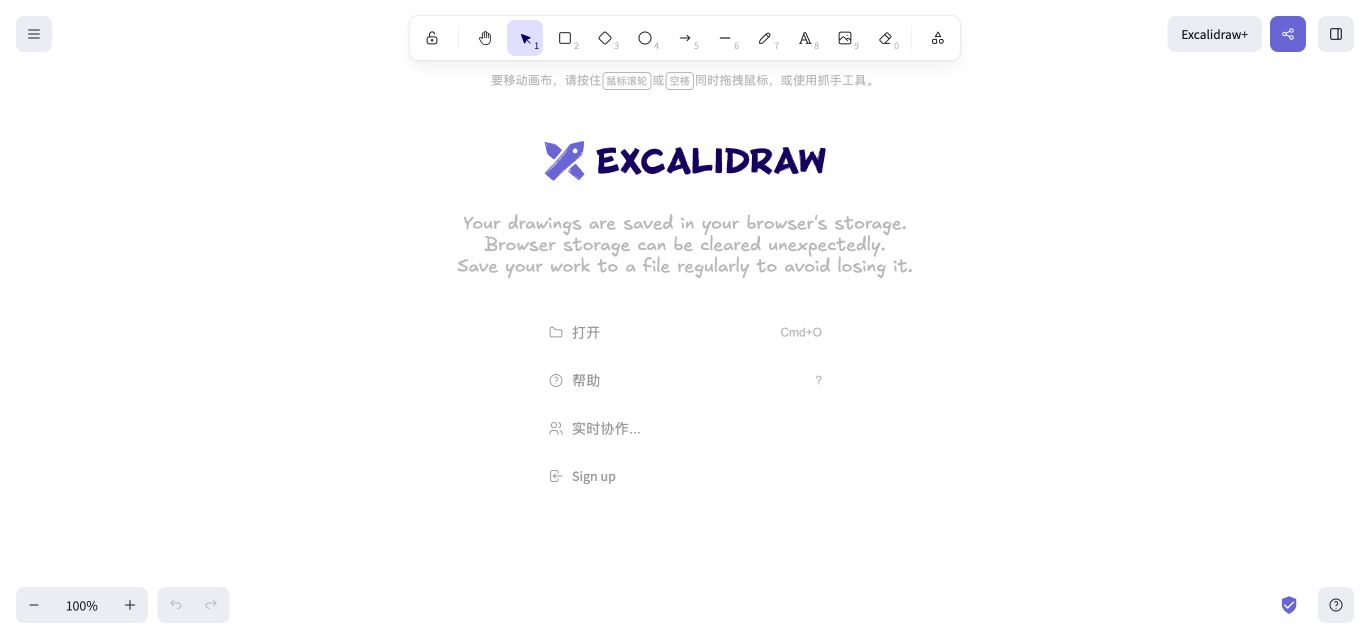
Excalidraw sits between a drawing site and an online whiteboard. Its free editor opens without an account and provides an infinite canvas, rectangles, diamonds, circles, arrows, lines, freehand marks, text, images, an eraser, libraries, and sharing controls. The intentionally hand-drawn visual style keeps diagrams from feeling overly formal.
It is excellent for system diagrams, wireframes, lesson explanations, interview notes, mind maps, and visual planning. Work can stay in browser storage or be saved to a file, and collaborative options are available when a private local canvas is not enough.
This is not a painting tool. There are no natural-media brushes or pixel-animation controls, and an illustrator will reach its limits quickly. Excalidraw belongs in this list because many people searching for websites to draw on actually need to explain an idea rather than paint a picture.
Best if: You are drawing relationships, flows, notes, or rough interface ideas.
Skip if: You need painting, photo editing, or animation.
9. Method Draw — Best for Vector and SVG Drawing
Quick facts: Free browser editor · No account required to begin · Vector paths and shapes · SVG-focused workflow
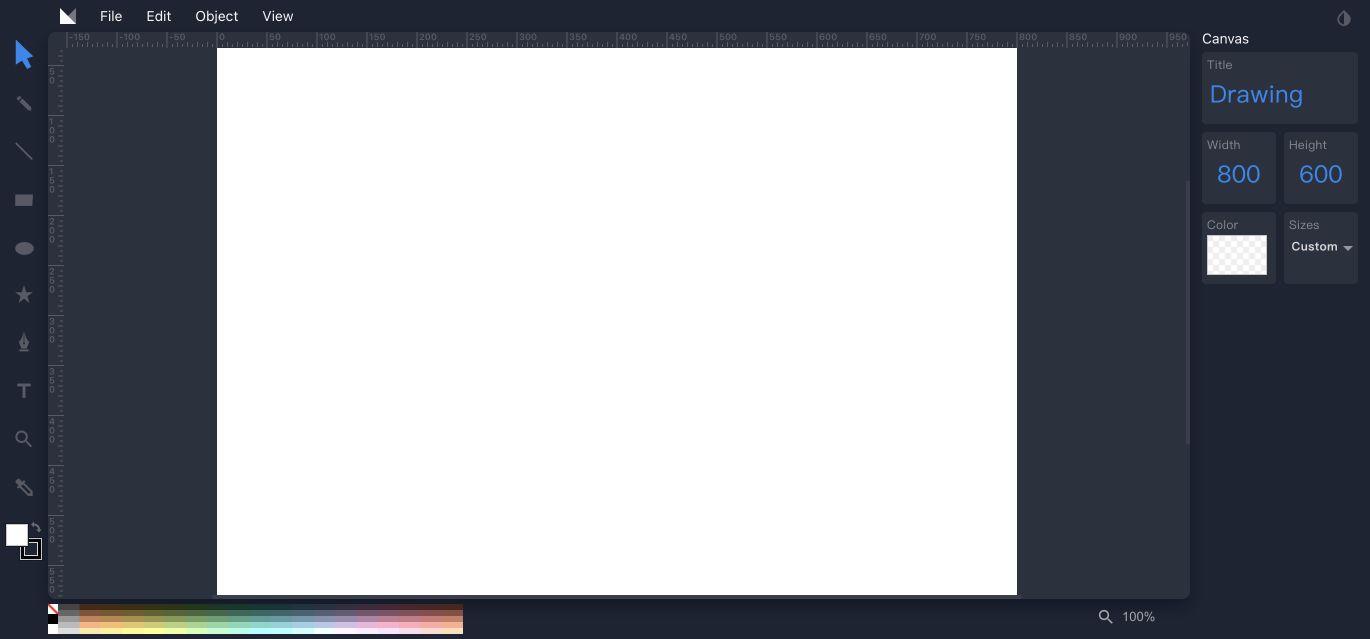
Method Draw is the specialist for vector graphics. Instead of storing a painting as a grid of pixels, it works with editable shapes, paths, fills, strokes, text, and canvas dimensions. The interface resembles a compact illustration application, with rulers, a color strip, object tools, and panels for the selected canvas or element.
Use it for icons, simple logos, diagrams, web graphics, and artwork that must stay sharp at different sizes. It is also a useful way to inspect or adjust an SVG without opening a heavyweight desktop program.
Vector editing has its own learning curve. Nodes, paths, fills, and stacking order make sense after a little practice, but they are less immediate than dragging a pencil across a canvas. Method Draw also lacks the natural texture that makes a painting tool enjoyable.
Best if: You need editable SVG shapes, icons, or scalable graphics.
Skip if: You want textured brushes, pixel art, or loose painting.
10. Brush Ninja — Best for Beginner-Friendly Frame-by-Frame Animation
Quick facts: Free web animation maker · No account required to start · Frame timeline · GIF export
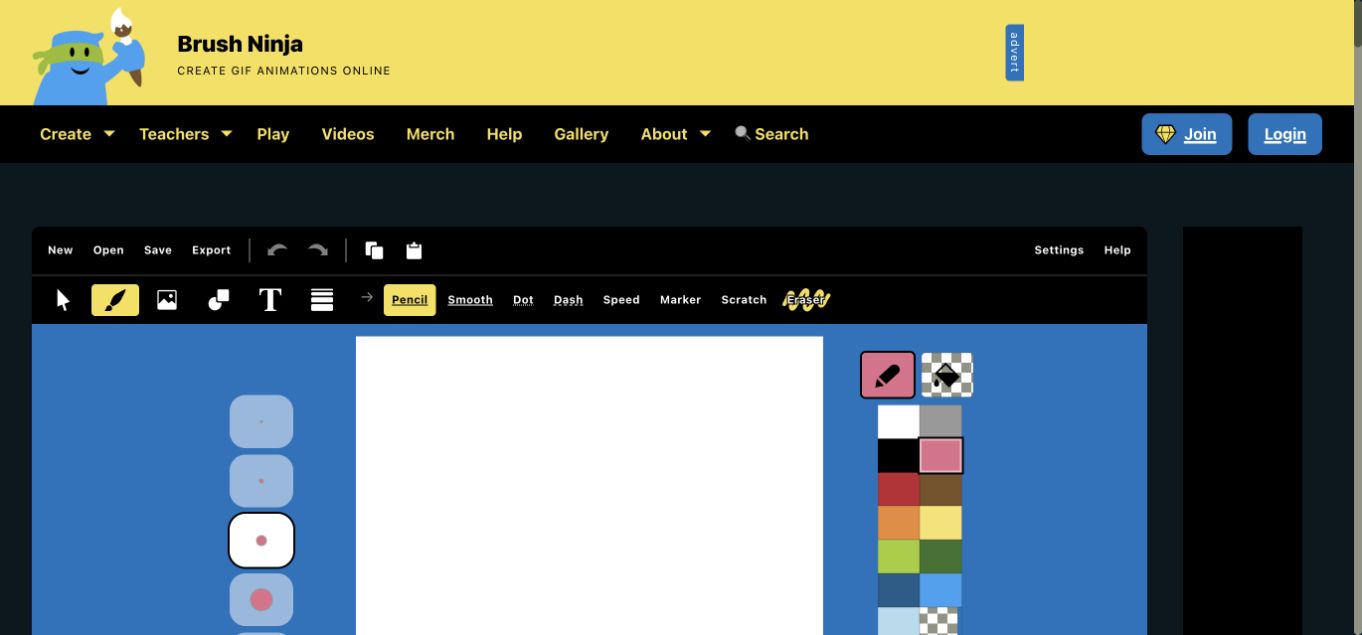
Brush Ninja teaches animation in the most direct way: draw a frame, add another, change the picture, preview the sequence, and export a GIF. The interface keeps frame thumbnails next to the canvas, so the relationship between drawings and motion is easy to understand. It also includes common drawing tools, colors, undo, image import, text, and animation settings.
This is a particularly good classroom or first-animation option. Unlike WigglyPaint, which animates the brush marks automatically, Brush Ninja uses a conventional frame-by-frame workflow. That gives the creator more control over changing poses and scenes, while requiring more drawing and timing work.
The free web experience includes advertising, and some longer-term saving or desktop features are more limited than the basic create-and-export loop. It works best when the goal is a compact GIF project rather than a large production.
Best if: You want to understand frames and make a simple hand-drawn GIF.
Skip if: You want motion without drawing separate frames.
Which Drawing Website Should You Choose?
Choose by the work you want to finish, not by the number of features advertised.
- For a quick doodle with no signup: Start with AutoDraw for clean symbols or WigglyPaint for something playful and moving.
- For animated drawings and GIFs: Use WigglyPaint when the lines themselves should move; use Brush Ninja for frame-by-frame scenes; use Pixilart for pixel animation.
- For painting and layers: Kleki is the simpler entry point. KRESKA.art offers the deeper brush and reference workflow.
- For drawing together online: Magma is built around artists sharing a canvas. Excalidraw is better for collaborative diagrams and notes.
- For pixel art: Pixilart has the most purpose-built editor in this list.
- For vector art and icons: Method Draw provides the cleanest SVG-centered workflow.
- For a broad mix of drawing, shapes, and text: Sketchpad is the all-rounder.
What to Look for in a Free Online Drawing Tool
Browser Access and Device Support
“Runs in a browser” does not automatically mean “comfortable on every device.” A desktop layout may technically open on a phone while leaving too little room for the canvas. If you use a school Chromebook, tablet, or stylus, check the exact device before committing to a long project.
Also distinguish between starting and saving. Several tools let you draw without an account but ask you to sign in when you want cloud storage, community publishing, or a reusable workspace.
Brushes, Layers, and Stylus Support
A simple online sketching tool may only need one good pencil and undo. Painting benefits from brush texture, opacity, stabilizing, blending, pressure support, and layers. Pixel art needs hard edges, a grid, palettes, and frame controls. Vector work needs paths and object editing instead of brushes.
Do not pay for complexity you will not use, but do not start a layered illustration in a digital drawing website that only exports a flat image.
Saving, Privacy, and Export Formats
Look at where the drawing lives. Some tools keep work in browser storage, some download a project file, and others save to an online account. Browser storage is convenient and private for quick work, but it can disappear when site data is cleared. Download important projects rather than trusting one local browser indefinitely.
Match the export to the job: PNG for a clean static image, SVG for editable vector graphics, GIF for looping animation, and video for social platforms that do not treat GIFs well.
Collaboration and Animation Are Different Workflows
A collaborative drawing website lets multiple people edit one canvas. An animation tool changes an image over time. Some platforms touch both areas, but they solve different problems.
Animation also has more than one model. WigglyPaint animates brush marks automatically. Brush Ninja and Pixilart build motion from separate frames. Neither method is universally better—the right choice depends on whether you want speed or precise control over each moment.
Frequently Asked Questions
What is the best free drawing website?
For instant animated doodles, WigglyPaint is the easiest place to start. Kleki is a better general painting choice, AutoDraw is best for fast clean symbols, and Sketchpad offers the broadest mix of drawing and design tools. The best option depends on the type of picture you need.
What drawing website can I use without downloading anything?
Every main tool in this guide has a browser-based experience. WigglyPaint, Kleki, KRESKA.art, Sketchpad, AutoDraw, Pixilart, Excalidraw, Method Draw, and Brush Ninja all open a creative interface without requiring a desktop installation.
Where can I draw online free without creating an account?
Yes. Several tools let you begin immediately, including WigglyPaint, Kleki, KRESKA.art, AutoDraw, Excalidraw, Method Draw, and Brush Ninja. Account requirements often appear later for cloud saving, publishing, collaboration, or community features.
Which drawing websites support layers?
Kleki, KRESKA.art, Sketchpad, and Pixilart provide layer-oriented workflows. Method Draw manages separate vector objects, which behaves like layered artwork even though the editing model is different.
What is the best website for drawing together online?
Magma is the strongest fit for artists who want to work on the same canvas. Excalidraw is better for teams creating diagrams, wireframes, and visual notes.
Which drawing website is best for pixel art?
Pixilart is the dedicated pixel art maker in this list, with pixel tools, palettes, layers, frames, GIF previews, and sprite-friendly exports. WigglyPaint is an alternative when you want a rougher animated-pixel look rather than precise sprite editing.
Can I make an animated GIF from a drawing online?
Yes. WigglyPaint exports moving brush artwork, Brush Ninja makes frame-by-frame GIFs, and Pixilart supports animated pixel frames. These are three different workflows, so choose based on the kind of motion you want.
Are online drawing websites safe for students?
A no-account local canvas usually exposes less personal information than a public community profile, but teachers and parents should still review each product’s current privacy terms, advertising, sharing settings, and age requirements. Avoid publishing a student’s real name or personal information with a drawing.
Start With the Smallest Tool That Fits
The best drawing websites let you sketch without installing software, collaborate without emailing files, make pixel art with hard-edged tools, or create motion without opening a professional animation suite.
If you want a small drawing that moves the moment you make it, open WigglyPaint and draw one simple shape. You can move to a more complex tool later if the project needs it.
Draw online for free
No download and no account needed for the core drawing canvas.
Open WigglyPaint