
This guide shows how to make an animated GIF by drawing every frame yourself. You will finish a small three-frame reaction face that moves in a loop. The same method works for a bouncing ball, blinking character, waving hand, pulsing star, or moving sticker.
WigglyPaint is not an AI generator and this page is not a video-to-GIF converter. You begin with a blank canvas, draw the motion, and save the finished loop. The brush marks already wiggle; the Animation panel adds a second kind of movement by playing your different drawings in order.
If you searched how to make a GIF, this is the drawing-first route: a drawing GIF made as a short loop GIF, not a converted clip. A frame is one drawing, a loop is the return from the last drawing to the first, and onion skin is the pale guide from the previous frame. Together they make a simple frame by frame GIF easier to control.
The short version
Draw one clear pose, copy the frame, change only the moving part, add a third frame, preview the jump from the last frame back to the first, then export the result as a GIF.
Before you draw
- Use one object and one action.
- Choose two or three strong colors.
- Draw the subject large enough to read in a small chat preview.
- Keep the first project to three or four frames.
Make an animated GIF step by step
1. Draw the first pose
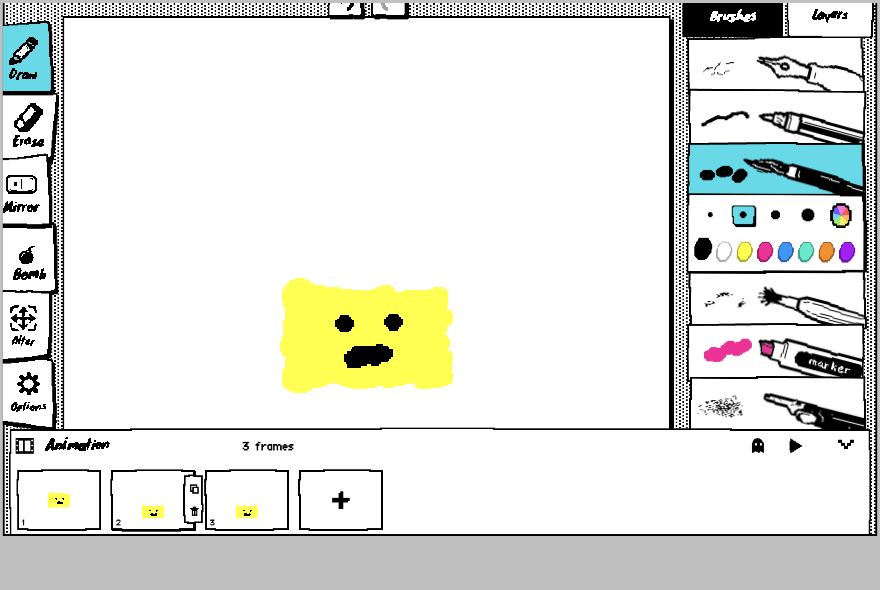
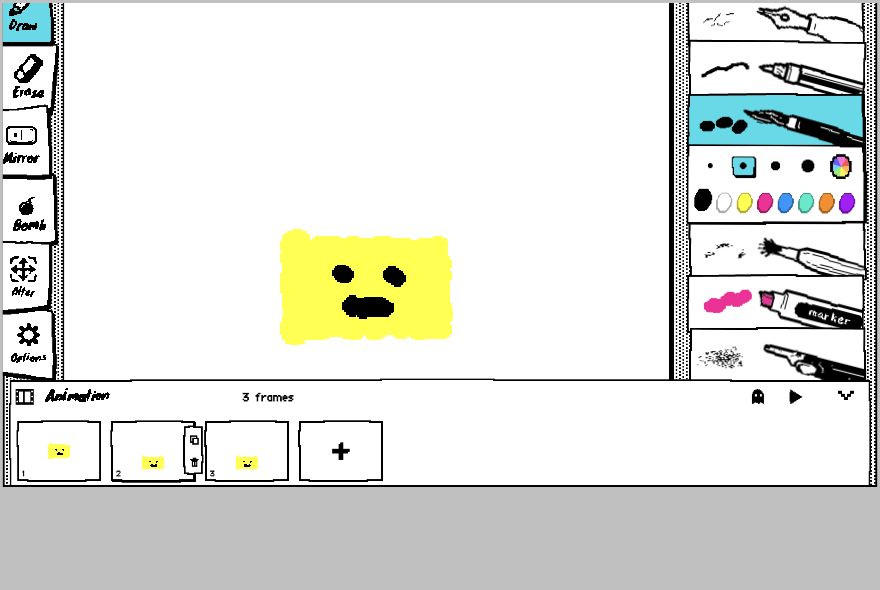
Open WigglyPaint, choose a brush and draw the starting pose. Keep the shape simple. Our example uses a yellow face with open eyes. The first frame often becomes the still preview, so it should make sense before it moves.
2. Open the Animation panel
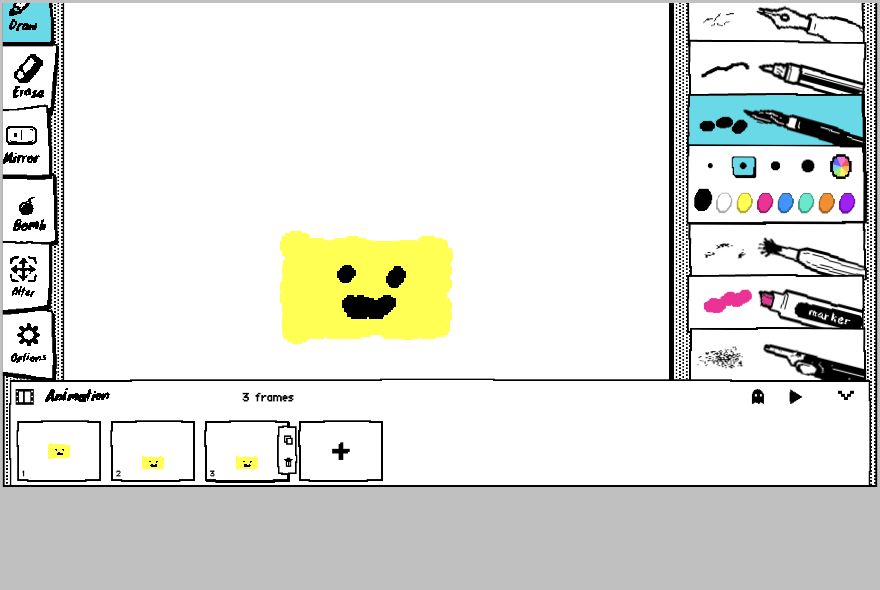
Expand Animation frames at the bottom. You will see the current frame, a play button, an onion-skin button and a large plus button. Select the first thumbnail before you continue.
3. Copy the frame
Use Copy frame when most of the drawing should stay in place. A duplicate keeps the face and lets you change only the eyes or mouth. Use the large plus button only when you need a completely blank frame.
4. Turn on onion skin
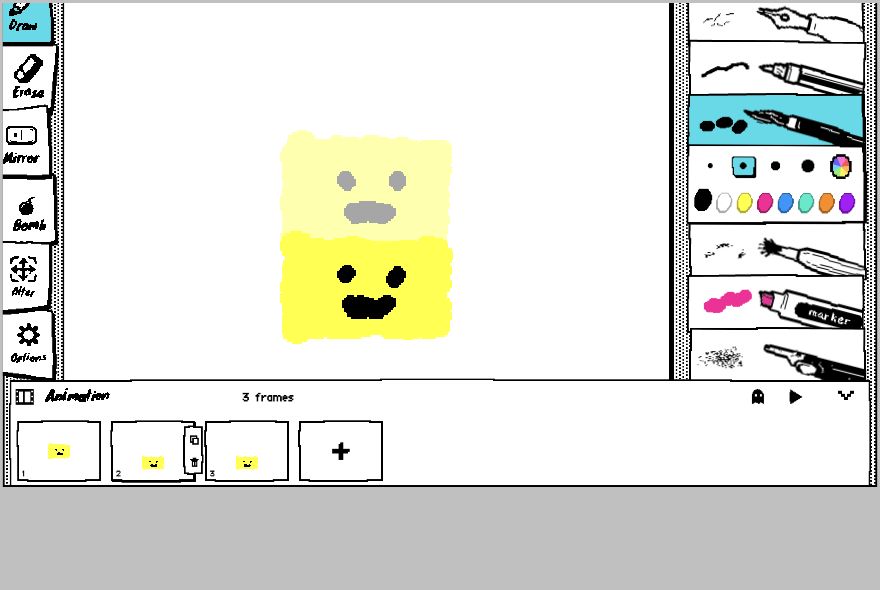
Select the ghost-shaped onion-skin control. The previous drawing appears as a pale guide. It will not be included in the exported GIF. Draw the next pose close to the guide when you want smooth movement.
5. Add a third pose
Copy again and make one more small change. For a bounce, move the object down in frame two and up again in frame three. For a blink, use open, closed, open. Three clear poses are enough for a first frame-by-frame GIF.
6. Preview the whole loop
Press play and watch at least three repeats. Pay special attention to the change from the last frame back to the first. If that jump feels harsh, change the last pose or add a middle frame. To make a pose stay longer, duplicate that frame; WigglyPaint does not currently offer a separate FPS or per-frame duration control.
7. Export and reopen the GIF
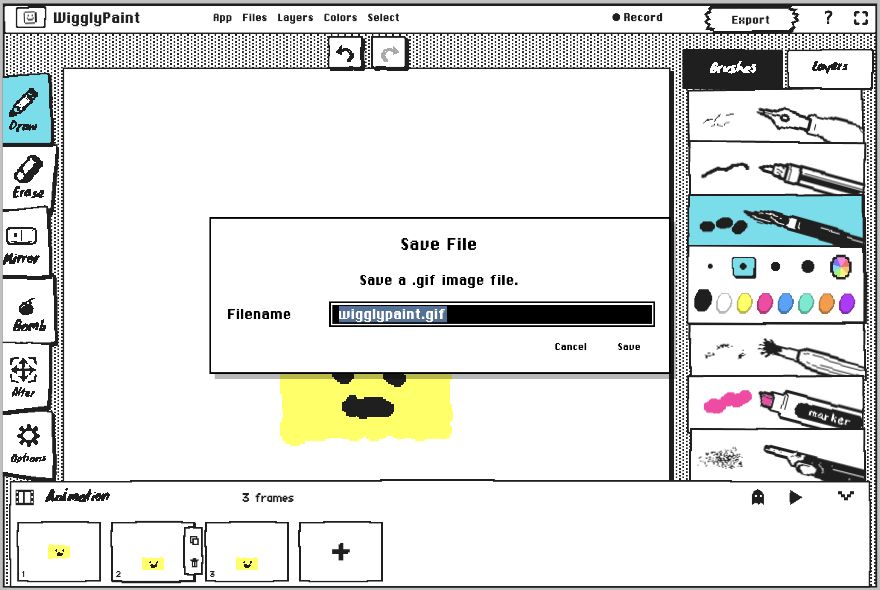
Select Export, keep the GIF file type, and save the file. Open the downloaded GIF outside the editor. Check that it still moves, the subject is easy to see at a small size, and the loop begins again without a large jump.
What the finished drawing looks like
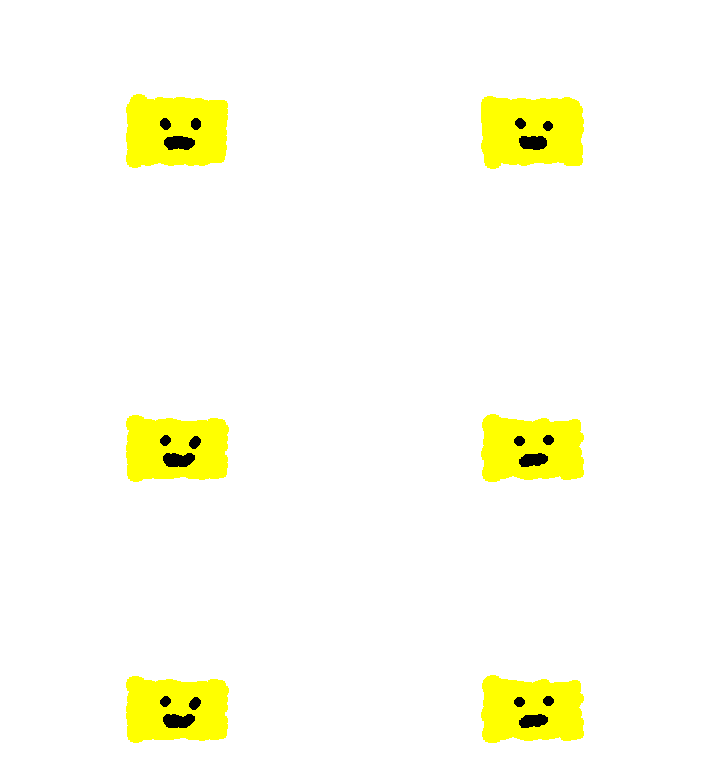
This is the exported file from the steps above. It is deliberately simple: the face is large, the colors stay flat, and only the position and expression change. That makes the motion clear even when the GIF is shown inside a message or feed.
Make the GIF easier to see and share
- Keep empty space around the subject small.
- Change one main thing per frame.
- Use bold shapes instead of tiny details.
- Duplicate a frame to create a short pause.
- Test the last-to-first change, not only the middle frames.
- Open the exported file before posting it.
Know the GIF limits before you add detail
GIF has no sound and can use up to 256 colors in each frame. Flat colors, bold outlines and a short loop usually stay clearer and smaller than gradients, photos or a long sequence. If the idea needs speech, music or a long scene, GIF is the wrong final format.
Fix common problems
- The GIF is too fast: Copy the pose that needs more time. Two identical frames create a short hold.
- The loop jumps: Compare the last and first frames. Move them closer or add a transition pose.
- The subject changes size: Turn on onion skin and line up the fixed parts before drawing.
- Only one frame moves: Check that each thumbnail contains a drawing and that you exported after adding all frames.
- The file looks muddy or heavy: Use fewer frames, fewer colors and less unused canvas space.
- The downloaded image looks still: Open it in a browser or app that plays animated GIFs. Some photo previews show only the first frame.
Where to use the result
A short loop works well as a reaction image, chat sticker, profile decoration, social post, classroom example, or tiny game-art idea. GIF has no sound, so the movement must explain itself. If you want to learn every frame control first, read the frame-by-frame animated drawing guide. For broader inspiration, see animation websites for beginners.
Frequently asked questions
Can I make the GIF for free?
Yes. You can draw the frames and export the GIF in the WigglyPaint web editor without installing a desktop program.
Does WigglyPaint animate an existing photo or video?
No. This workflow is for drawings you make frame by frame. It is not an image-to-animation or video-to-GIF converter.
How many frames should a beginner use?
Start with three or four. Add more only when the motion needs a smoother transition.
Can I change the speed of one frame?
There is no separate per-frame duration setting at the moment. Duplicate a frame to keep that pose on screen longer.
How do I make the loop seamless?
Compare the last frame with the first. Keep the subject near the same position, or add a transition frame that leads the eye back to the start.
Can an animated GIF contain sound?
GIF does not store audio. The drawing and timing must communicate the action without sound.
Can this web workflow export a video?
This tutorial covers GIF export from the web editor. It does not promise a video file from the same frame workflow.
Make your first three-frame GIF
Open WigglyPaint, draw one simple pose, and finish the loop before adding more detail.
Start drawing