
The best free animation websites help you finish the animation you actually want to make. A blinking doodle, a game character’s walk cycle and a short cartoon with dialogue need different tools. Choosing the biggest feature list can leave you learning a timeline when you only wanted a small GIF.
This guide compares four tools you can use in a browser and six apps or desktop programs worth considering when you want more control. All ten help you create animation; they are not sites for watching cartoons or galleries of animated web designs. The first four have free browser creation workflows. The remaining six have different pricing and installation requirements, which we spell out below.
For a quick choice, use WigglyPaint for animated drawings with wiggly lines, Brush Ninja for an approachable flipbook, Piskel for pixel sprites, or Wick Editor for interactive projects. If you want audio, detailed painting or a longer learning path, compare the apps in the second half.
Who publishes this comparison?
This guide is published by the WigglyPaint team, and WigglyPaint is one of the products included. We reviewed official pricing, documentation and product examples on October 24, 2026, and opened the four browser editors. We did not purchase and complete a project in every native app. Difficulty and project recommendations are our editorial judgments, not measured performance scores. There are no affiliate links.
Before you commit: test one tiny loop
Use a blinking face or bouncing ball to test a tool before starting a long project.
- Match your device first. Use a browser tool if you want to avoid installation; ToonSquid and Dreams require an iPad.
- Test the actual motion. Duplicate a frame, change one pose and play the loop. If you want automatic new poses from one uploaded drawing, these hand-drawn workflows may not meet that need. Line wiggle and keyframe transforms are different from generating poses.
- Export before you commit. Open the exported file in the place you plan to share it. GIF is silent; dialogue needs a supported video export. Check payment and watermark requirements before buying.
- Check that you can continue tomorrow. Save an editable project where supported, close it, then reopen it and change a frame. A finished GIF is not a substitute for an editable project.
Compare all 10 animation tools
Prices below are official list prices or US storefront prices checked on October 24, 2026. Regional pricing, subscriptions and promotions can change. “Free” describes a usable creation workflow, not a promise that every feature is free.
| Tool | Where you create | Price and free limits | Best starting project | Learning curve |
|---|---|---|---|---|
| WigglyPaint | Browser; separate mobile apps | Web animation is free; iOS US $4.99; Android currently advertised as limited-time free | Wiggly character or reaction GIF | Low |
| Brush Ninja | Browser | Basic GIF creation free; membership $7/month or $48/year | Bouncing ball or classroom flipbook | Low |
| Piskel | Desktop browser recommended | Free; standard editor has ads; free Kids edition available | Pixel character walk cycle | Low to medium |
| Wick Editor | Browser; beta download also offered | Free and open source | Moving shapes or a clickable story | Medium; higher with scripting |
| FlipaClip | iOS and Android apps | Free plan has 3 layers; Plus subscription adds features | Hand-drawn character performance | Low to medium |
| Pencil2D | Windows, macOS, Linux and FreeBSD | Free and open source | Traditional hand-drawn action test | Medium |
| Krita | Desktop; Android builds also available | Official download free; paid store editions optional | Textured animated illustration | Medium to high |
| RoughAnimator | iPad, Android, Mac and Windows | $7.99 per operating-system version, one-time purchase | Rough character motion or lip-sync practice | Medium |
| ToonSquid | iPad only | US $9.99 one-time purchase; no free trial | Character scene with reusable motion | Medium to high |
| Procreate Dreams | iPad only | US $12.99 one-time purchase | Painterly loop or mixed-media short | Medium to high |
These learning curves describe the interface and workflow. Drawing believable movement still takes practice, even in a simple editor. For general painting rather than animation, see our separate drawing websites comparison.
Four free animation websites for drawing in your browser
These are the most direct choices if you want to draw animation online without installing a program. Each has a different reason to exist: expressive lines, a simple flipbook, pixel precision or interaction.
1. WigglyPaint — Best for wiggly drawings and short GIFs
Access: Free web animation, with no signup required for the core canvas. Separate mobile apps have their own pricing.
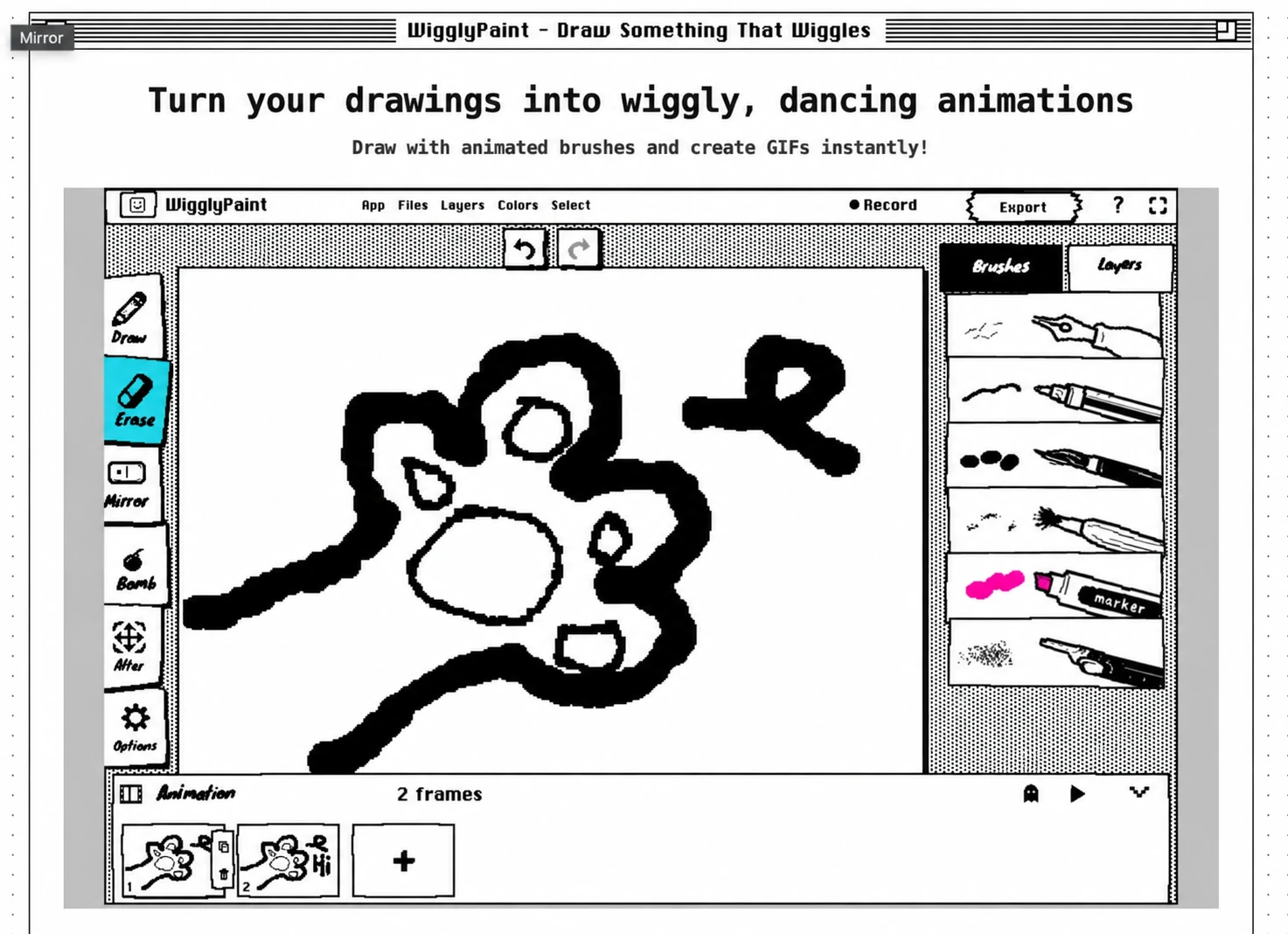
WigglyPaint gives a small drawing movement before you build a full sequence. Its brush marks wiggle automatically, creating a playful, handmade pixel look. You can also draw different frames, preview a loop and export the result as a GIF. A character can blink or wave while its lines keep their lively wobble.
This combination makes it a good fit for casual creators, reaction images, stickers, tiny characters and classroom drawing activities. Try a face with open and closed eyes, a flower opening, or a little person lifting one arm. You do not need a polished illustration to make those ideas readable.
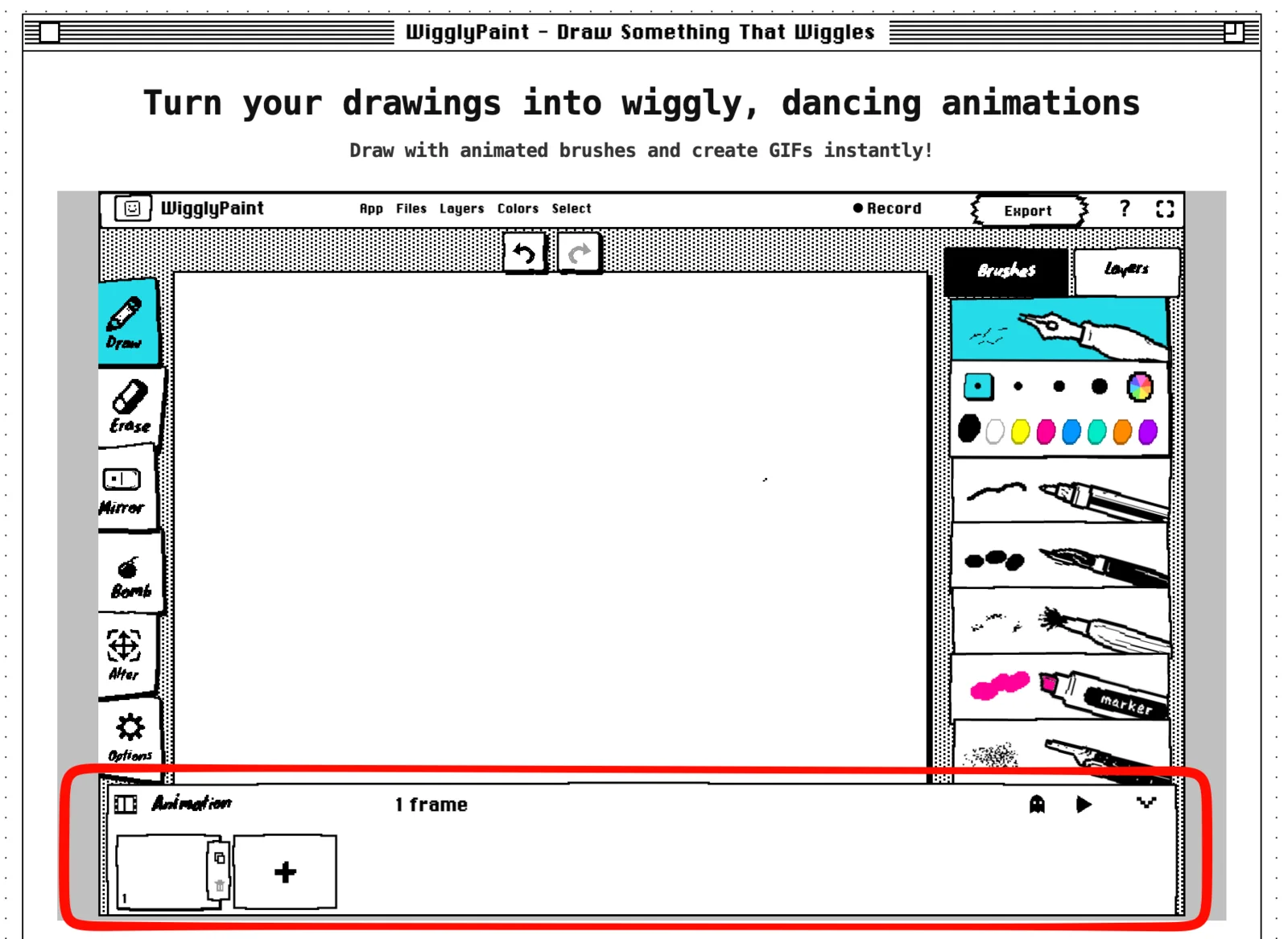
The basic workflow is draw, duplicate or add a frame, change the moving part, preview and export. Onion skin shows the previous frame as a guide. Drawing layers let you separate parts of your artwork, while image-layer controls help you arrange imported pictures.
The important boundary is automatic line movement versus automatic character animation. WigglyPaint supplies the wobble, but you still draw the poses that make an arm wave or a ball travel. It is not an AI animation generator, a bone-rigging studio or a complete dialogue-editing timeline. The web frame workflow is centered on GIF export; recording the drawing process is a separate feature. If you plan to switch to a mobile app, check its current feature list separately.
Choose it for: A distinctive animated doodle without much setup. Consider another tool for: Long scenes, precise audio timing or complex camera work. Follow the frame-by-frame animated drawing tutorial when you are ready to make your first loop. See the community gallery for artwork ideas.
2. Brush Ninja — Best for a first flipbook or classroom animation
Access: Basic drawing and GIF export are free without an account. Premium membership is $7/month or $48/year, according to the official FAQ.
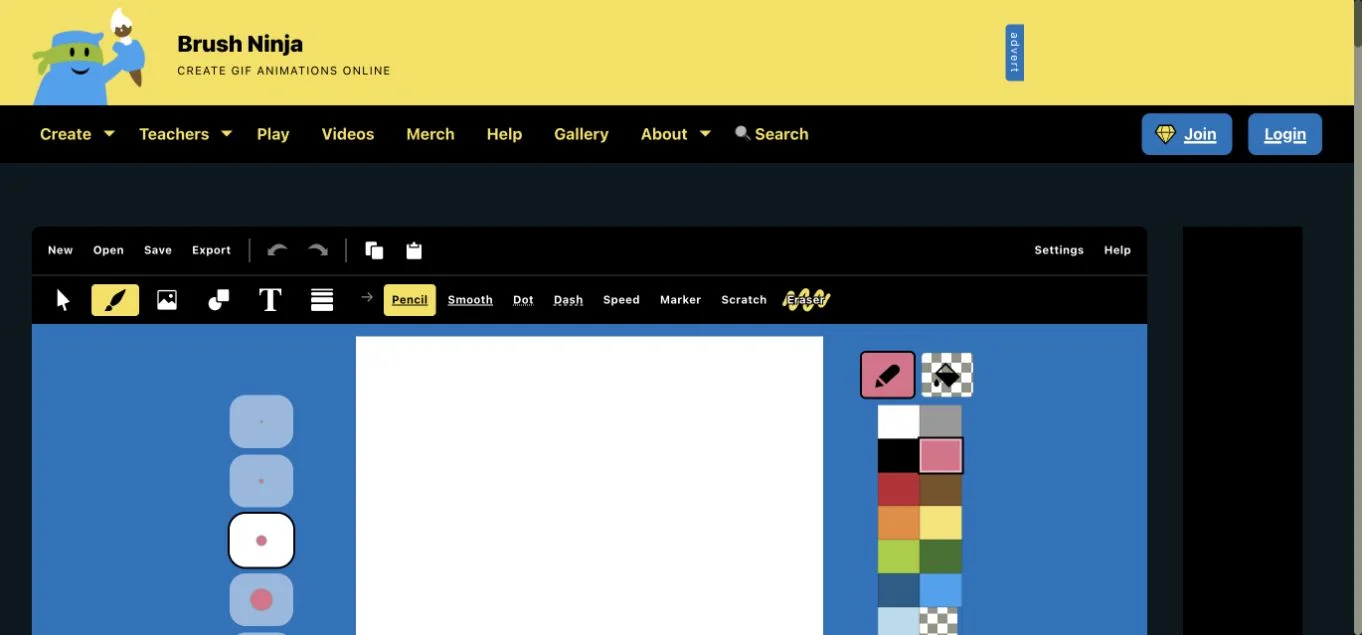
Brush Ninja makes the flipbook idea easy to understand: draw a picture, duplicate or add the next frame, make a change and play the sequence. Its flat colors and simple drawing tools suit stick figures, little cartoons and visual explanations. Official examples include a pie disappearing bite by bite, a bouncing-ball gag and swimming sea creatures.
Teachers can use that workflow for a plant growing or a process changing over time. Beginners can start with a moving dot rather than planning an entire cartoon. Frame duration controls help a drawing stay on screen longer without requiring a new pose.
There are useful distinctions inside the free plan. Uploading a background image is different from the premium Images mode for animating imported objects. Members can export videos with sound; free GIF exports cannot carry audio. Membership also includes benefits such as removing advertisements and accessing additional resources. Check the membership page before choosing it for an audio-based assignment.
Brush Ninja uses selectable vector objects but does not have a conventional layer system, according to its FAQ. Rearranging objects is helpful, yet a scene with several independently moving characters can become harder to manage. Save an editable project as well as the GIF if you want to continue later; the export guide also describes frame images and image sequences.
Choose it for: Learning traditional frame-by-frame animation with a small interface. Consider another tool for: Complex layered scenes or free video export with sound.
3. Piskel — Best for pixel animation and game sprites
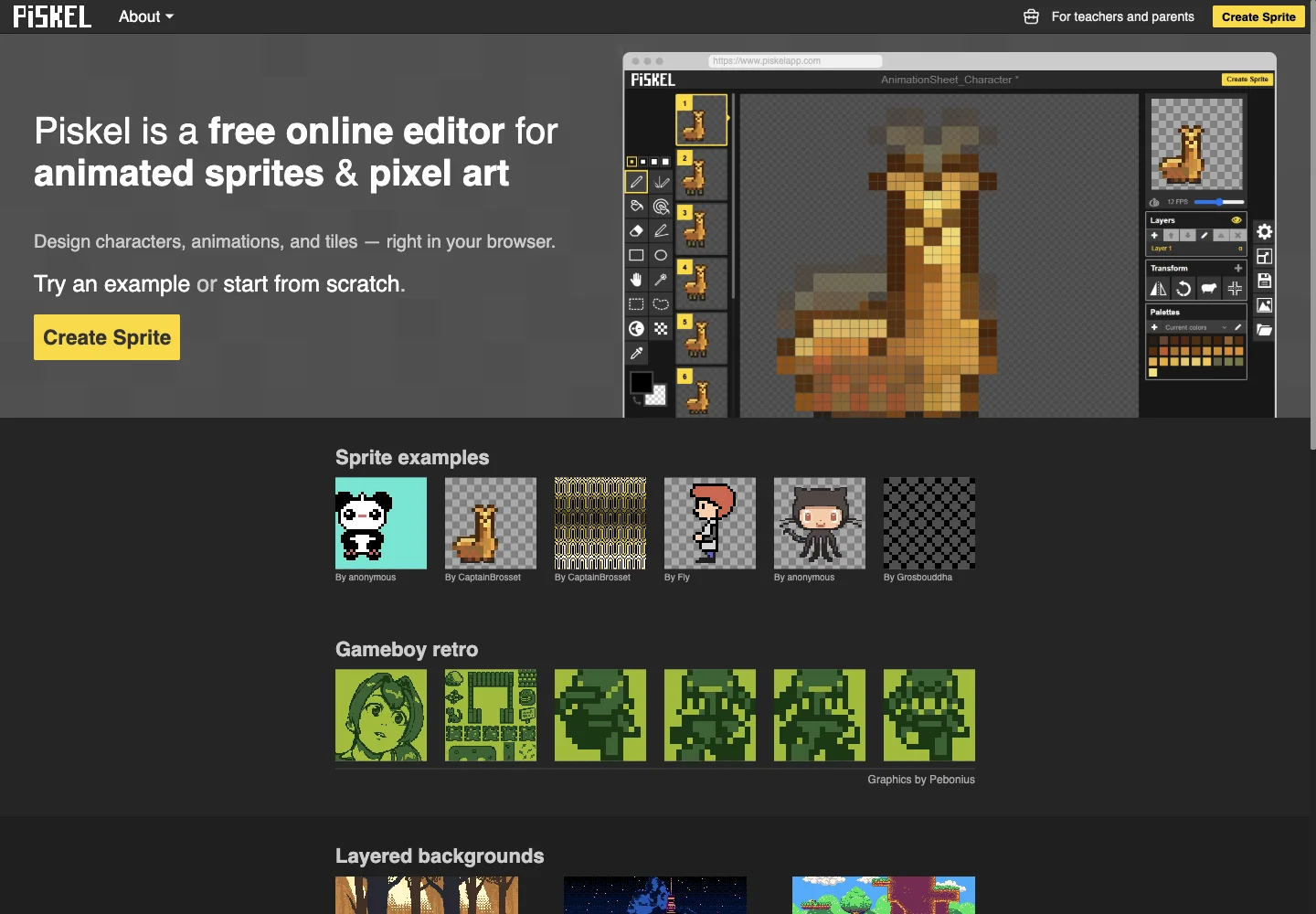
Access: Free browser-based creation without an account. The standard editor has ads; the free Kids edition removes ads and social features.
Piskel is an online animation maker for a specific kind of drawing: pixel art. Instead of trying to imitate a pencil or a painted canvas, you place and edit pixels. It is particularly well suited to a game character’s idle pose, walk, attack or jump cycle, and to small animated pets, icons and effects.
The workflow is to choose a small canvas, draw the character, duplicate the frame and change a few pixels while watching the live preview. Layers separate parts of the artwork. The interface is manageable, but making a tiny silhouette stay consistent across frames is an art skill of its own. A small canvas does not automatically mean an effortless animation.
Its export options are a major reason to choose it. GIF is useful for showing the loop; PNG sprite sheets and image sequences are useful when the animation will become a game asset. A sprite sheet puts multiple frames into one image for another program to play. It is not the same as a finished video with dialogue or music.
Treat saving carefully. The FAQ describes recovering recent local sessions, while the terms tell users to export before leaving and do not promise cloud storage or dependable autosave. Local recovery is not a substitute for saving your own project. A desktop browser gives the tools and preview more room than a phone screen.
Choose it for: Crisp pixel loops and game-ready frames. Consider another tool for: Painterly animation, large illustrations or audio-led storytelling. Unlike WigglyPaint, pixel precision is the point; automatic wiggly lines are not its signature effect.
4. Wick Editor — Best for animation that becomes interactive
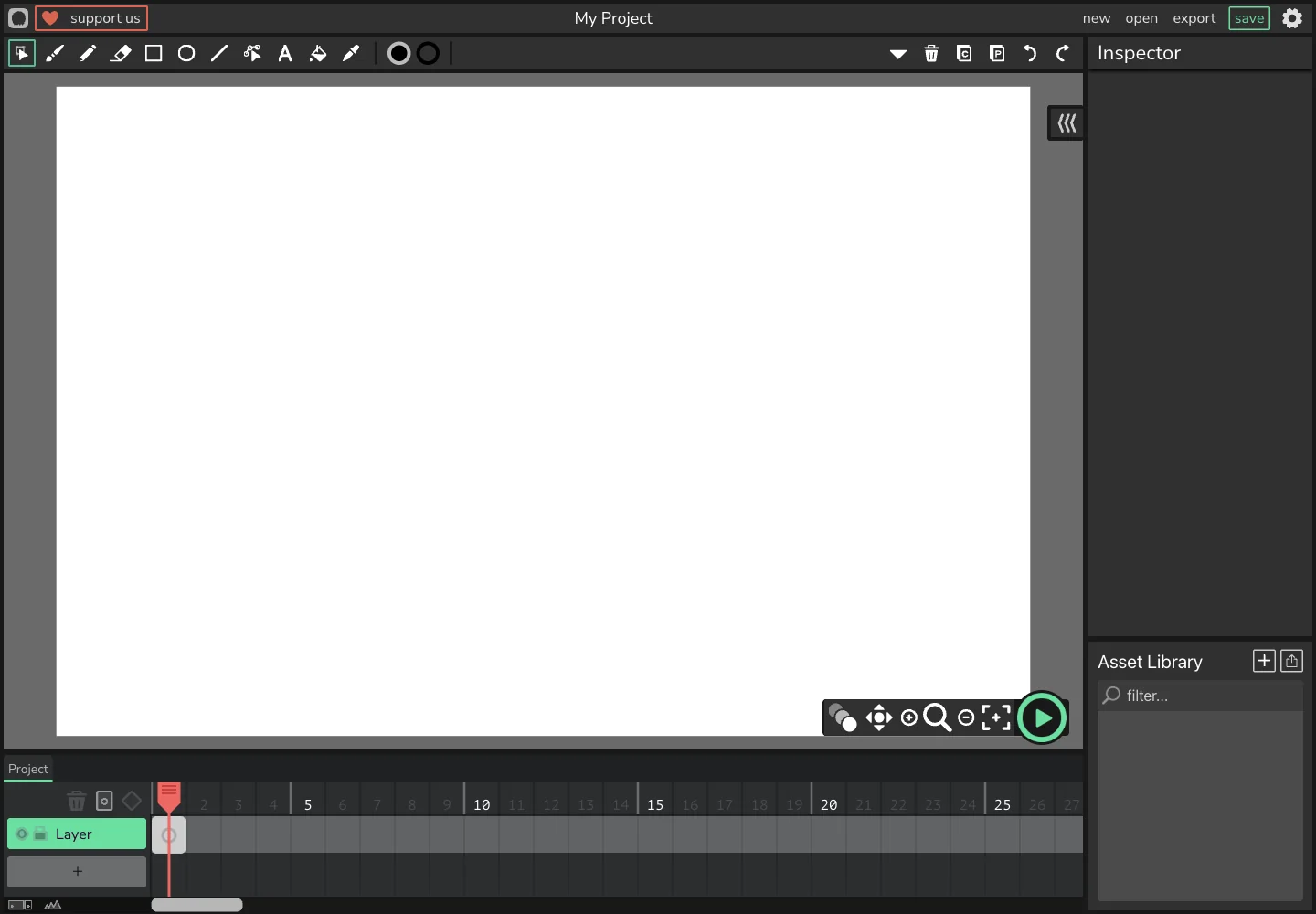
Access: Free and open source. The web editor can be opened without a mandatory account; project support and donations are optional.
Wick Editor sits between a drawing animation tool and a small interactive authoring environment. You can draw objects, organize a timeline and work with object motion, then add interaction when you want the viewer to do something. Official examples include following the mouse, dragging objects and moving between rooms.
That makes it a good choice for a clickable story, an educational interaction or a simple game as well as a flat-color cartoon. For a first project, moving a shape is more approachable than building a multi-scene interactive story. Once you add scripts, you are learning programming as well as animation.
The extra control brings extra vocabulary: layers, frames, objects, assets and nested content. It is a larger commitment than making a quick GIF in WigglyPaint or Brush Ninja. Plan where your objects belong and save the editable .wick project, not just the finished output.
The current editor opened as version 1.19.3 during our check. Its export menu offered animated GIF, Video (Beta) and separate interactive, audio and image options. A GIF has no sound or interaction. A video can have sound but does not remain clickable. Use an interactive export for a project that must respond to its viewer, and test a small video export before committing a long project to a beta workflow.
Choose it for: Combining drawing with interaction. Consider another tool for: The shortest route to a first animated GIF, or video delivery when you cannot first test the beta exporter.
Six animation apps when you want more control
These are not browser editors. Some are entirely free, some have a free starting tier, and three require an upfront purchase. They belong in the comparison because a reader who outgrows a small animated drawing website may need a different workflow rather than another website.
5. FlipaClip — Best for drawing character animation on mobile
Access: Free iOS and Android app with a Plus subscription. The current free plan has three layers.
FlipaClip is a practical next step if you want to draw characters on a phone or tablet and arrange their actions with sound. It suits expressions, short cartoons, animation memes and character performances. The look is yours to draw: rough pencil lines, clean cartoon outlines or colored characters, rather than one automatic visual style.
Its newer Classic and Studio layouts offer two views of the same project. The October 2026 update documentation describes a shared timeline for drawings and audio, frame holds and grouped loops. Those controls organize the pictures you have made; they do not draw the character’s missing poses for you.
Free users can begin a real project, but three layers can feel restrictive once you separate background, line art and color. Plus includes benefits such as removing the watermark and ads and adding advanced features. New-version Plus no longer has a fixed layer count; older help pages saying ten layers are out of date. The US App Store lists multiple purchase prices, so check the actual subscription period and offer on your device instead of assuming every listing is the same annual plan.
Choose it for: A mobile path into hand-drawn characters and audio. Consider another tool for: A no-install browser workflow or a purchase with no recurring subscription. A stylus and a larger screen can make detailed drawing more comfortable, but they do not remove the work of making the poses consistent.
6. Pencil2D — Best for a free desktop introduction to traditional animation
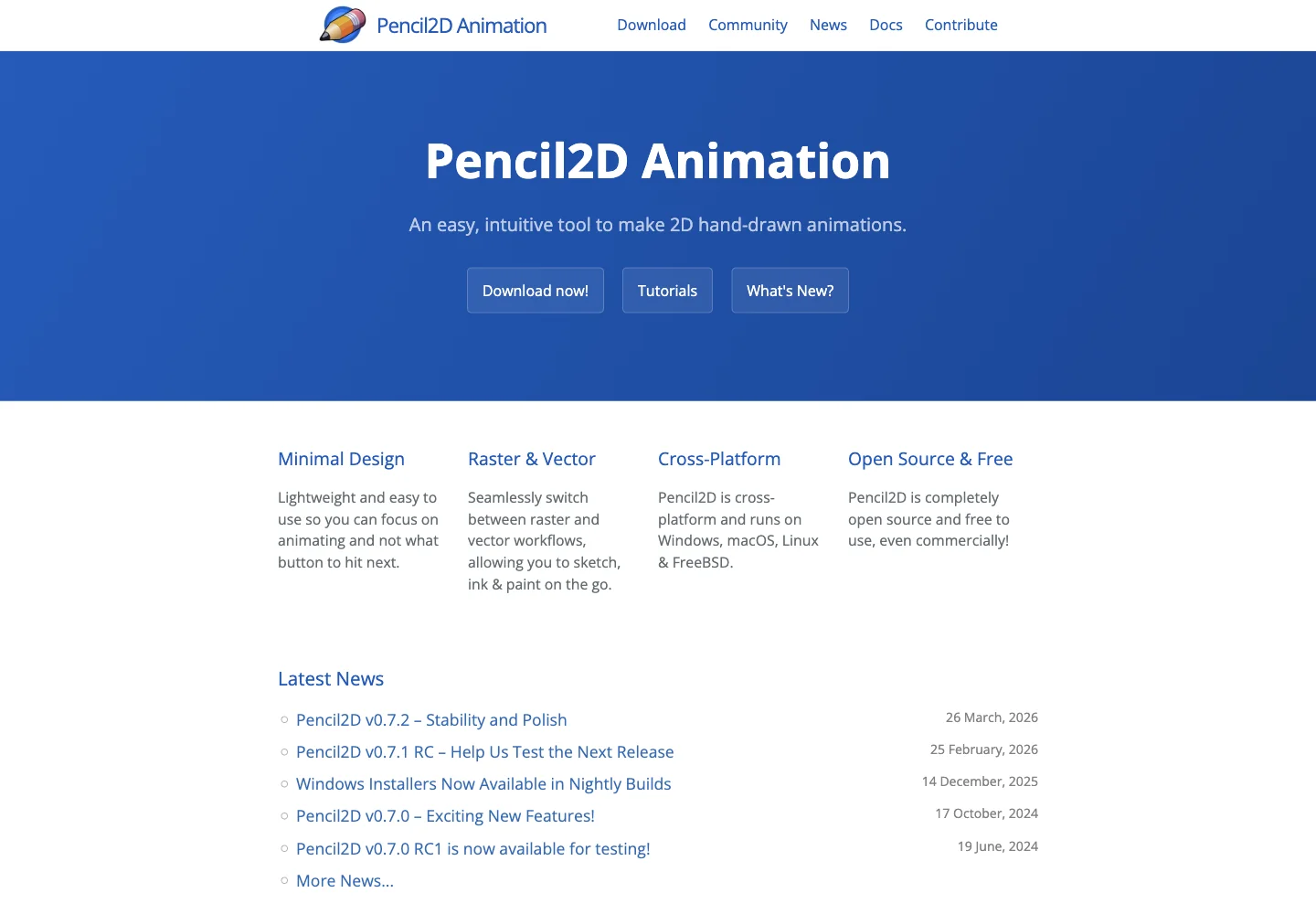
Access: Free and open source on Windows, macOS, Linux and FreeBSD.
Pencil2D concentrates on traditional hand-drawn animation with a relatively light interface. Raster and vector workflows let you sketch and develop drawings, while the timeline gives those drawings their timing. Think pencil action tests, a character learning to walk, or a short scene that you will clean up later.
It is a good fit for someone who wants to learn animation rather than apply a ready-made effect. You still need to understand poses, spacing and held drawings. You also need to learn the difference between the canvas and the camera area that will appear in the export. A pen tablet is useful for character work; the software being free does not make mouse drawing equally comfortable.
The official tutorials cover the basics and traditional workflows. GIF, image sequences and movie exports offer different handoff options. For longer work, keep projects in shots and combine them in a video editor. The export troubleshooting guide explains audio, camera-size and encoding issues that can otherwise surprise a beginner.
Choose it for: Practicing hand drawn animation on a computer without subscription costs. Consider another tool for: Automatic character motion, a large brush-painting studio or a complete editing and sound-mixing environment. It has less setup overhead than a broad painting workspace, but finishing a polished scene still takes drawing time.
7. Krita — Best for animating with expressive painting brushes
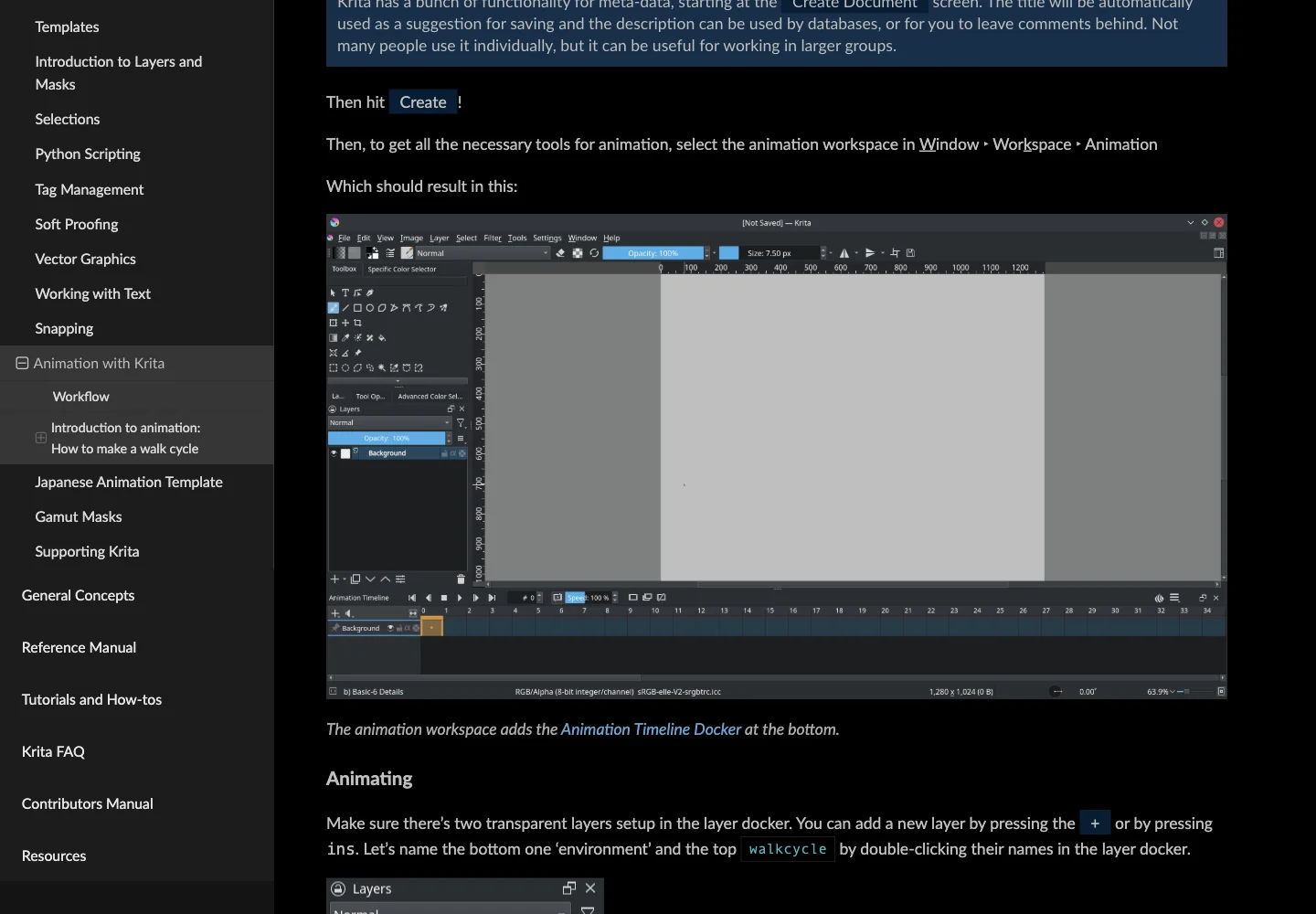
Access: The official desktop download is free. Paid store editions are optional ways to obtain it and support development; iPad and iPhone are not supported.
Krita is worth considering if you already enjoy drawing digitally and want an animation to retain your brushwork. It can suit textured illustration, a painted character, comic-style line art or a short loop in which hair, clothing or a facial expression moves. Your brush choice and drawing skill shape the result.
Its core animation workflow is frame-by-frame raster drawing. Switch to the Animation workspace, create animated layers, draw poses and refine the timeline with onion skin. Although position and opacity changes are also documented, that is not a promise of automatic character rigging or AI in-between drawings.
The learning curve is higher for someone who is new to both painting software and animation. You manage brushes, layers, timing and rendering together. Memory also matters: the animation manual recommends short clips and careful resource use rather than putting an entire long movie in one document.
The rendering documentation covers GIF, video and image-sequence output. Since 5.2, some FFmpeg functionality is bundled; “everyone must separately install FFmpeg” is outdated advice, although certain encoding needs still require configuration. Preserve image sequences when you need a flexible handoff, and check transparency support for the exact export format.
Choose it for: Detailed animated illustration and a free painting-led workflow. Consider another tool for: A tiny low-setup GIF or a lightweight workflow on a memory-limited device. See the download page for supported platforms and store options.
8. RoughAnimator — Best for focused hand-drawn action tests
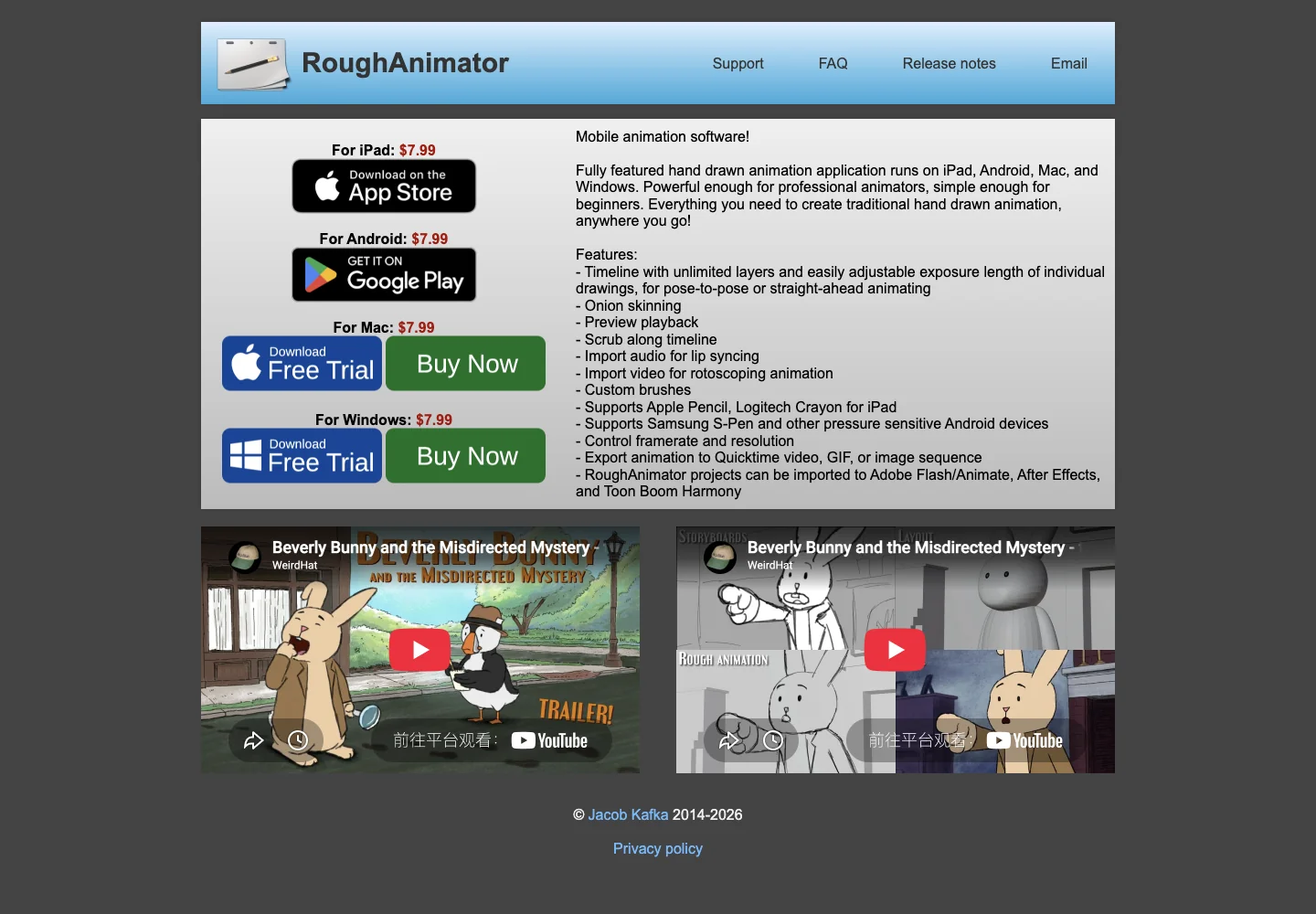
Access: The official site lists $7.99 for each iPad, Android, Mac or Windows version, paid once. Different operating-system versions must be purchased separately.
RoughAnimator is for people who want to draw the movement themselves. It has onion skin, layers, adjustable exposure, audio reference for lip-sync and video import for rotoscoping. It fits rough character tests, running and jumping, expressive poses and dialogue practice.
The official FAQ is unusually clear about the boundary: there is no keyframing or tweening to make the animation for you. Every changing pose is your drawing. That is useful when learning traditional animation, but disappointing if you expected to make a character walk by moving two controls.
The drawing tools are focused rather than a substitute for a full illustration studio. Export options include QuickTime video, GIF and image sequences, with documented handoffs to other animation applications. It can be part of a production workflow without being the place to edit and mix an entire film.
There is no fixed animation-length limit, but memory, resolution and drawing count affect what a device can handle. The developer recommends splitting longer work into short sections. Phone screens can feel cramped, so a tablet and pressure-sensitive pen are often more comfortable. Transferring a project between platforms does not transfer your software purchase.
Choose it for: An inexpensive one-time purchase focused on frame-by-frame drawing. Consider another tool for: Automated in-between motion, elaborate painting brushes or a full compositing timeline.
9. ToonSquid — Best for growing into a complete iPad workflow
Access: US $9.99 one-time purchase. iPad only; no free edition or trial, according to the official FAQ.
ToonSquid combines traditional drawing with keyframes, vector shapes, reusable symbols, bones, effects and camera movement. It can produce a hand-drawn character scene or cleaner graphic animation, depending on how you build the project. You can combine frame-by-frame and keyframed elements rather than choosing one forever.
For a beginner, start with a short hand-drawn loop. For someone progressing, reusable elements and rigging offer ways to avoid redrawing everything. The trade-off is learning layer types, hierarchies, symbols, easing and camera controls. Those concepts give you options, but they are not required for a first blinking face.
The handbook describes GIF, MP4, MOV, image sequences, PSD and project export. Audio belongs in video exports. Transparent video requires compatible settings and playback software; a black background in a viewer does not necessarily mean the file lost its transparency. The FAQ lists a 4096×4096 resolution ceiling and explains that practical layer and project limits depend on the device and project.
The upfront app cost is small compared with needing a suitable iPad and, for comfortable drawing, a stylus. The app does not have a subscription or features locked behind additional in-app purchases. Check the current storefront price for your region.
Choose it for: A long-term iPad path from drawing frames to more structured animation. Consider another tool for: A free first experiment, Android use or a workflow you need to try before buying.
10. Procreate Dreams — Best for painterly and mixed-media animation
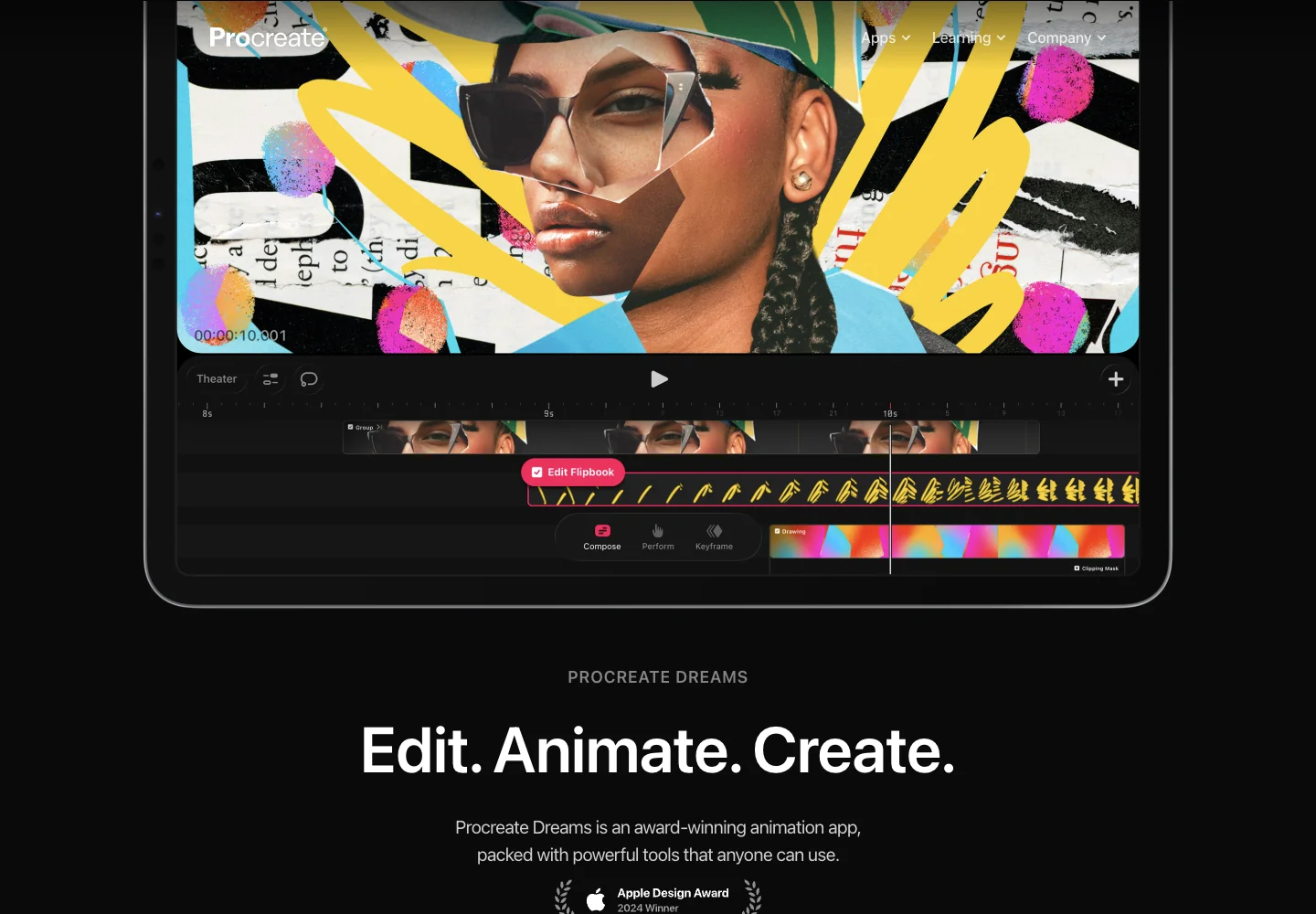
Access: US $12.99 one-time purchase, without a subscription. It is an iPad app separate from Procreate.
Procreate Dreams combines frame-by-frame Flipbooks, textured drawing, keyframes, touch-based Performing and audio/video content. It is a strong match for moving illustrations, hand-drawn accents over footage, collage and short visual stories. Official examples show how drawing and imported images can share a timeline.
Performing records motion through touch; keyframes can change properties between points in time. Neither means the app understands a character and draws all its poses automatically. You can use these tools to move an illustration while still drawing frame-by-frame details such as a blink or fluttering cloth.
People familiar with Procreate may appreciate the drawing approach, but Dreams has its own tracks, timeline and project organization. It is not simply the same painting canvas with a play button added. For a first piece, animate one illustration element before trying a multi-track short film.
Current documentation includes animated GIF export, as well as video, frames and project files. Older reviews claiming that Dreams cannot export GIFs are no longer a reliable guide. The Share handbook and advanced export guide explain the options. Supported video codecs and high-resolution capabilities vary with hardware; long projects also need storage and rendering time.
Choose it for: A textured, touch-driven drawing and mixed-media workflow on iPad. Consider another tool for: Browser creation, a free experiment or a device outside the supported iPad range. It is a different fit from ToonSquid, not an automatic winner or loser for every animator.
Choose by the animation you want to make
- A reaction GIF or tiny animated character: Start with WigglyPaint when the line wobble is part of the appeal. Choose Brush Ninja when you want a straightforward flipbook.
- A game sprite: Choose Piskel for pixel control and sprite-sheet export, rather than forcing a general drawing tool into a game-asset workflow.
- A clickable story: Choose Wick Editor and keep interaction in the exported interactive format, not in a GIF.
- A character with dialogue: Compare FlipaClip and RoughAnimator for drawing to audio. Expect to draw the mouth shapes yourself.
- A detailed animated illustration: Krita is a free desktop option; Procreate Dreams is an iPad option for drawing and mixed-media work.
- An iPad project you want to develop over time: Compare ToonSquid’s structured animation tools with Dreams’ drawing, touch-motion and video workflow.
If you are unsure, draw the same simple blink or bouncing ball before committing to a longer project. Check whether editing the next frame and saving the result make sense to you. A tool that fits that small test is a better starting point than a long feature checklist.
What to check before choosing an animation site or app
Free drawing is not always free delivery
Check export, watermark, audio and layer limits separately. Brush Ninja’s free GIF and paid video-with-sound workflow are different offers. FlipaClip’s three free layers can be enough for a first test yet restrictive for a layered scene. WigglyPaint’s web animation is free; its mobile-app prices do not turn the web feature into a paid feature.
Saving a project is different from exporting a GIF
A GIF is easy to share but does not preserve an editable project structure. Keep the native project or a suitable editable file as well. Browser session recovery is not the same as a cloud library, and moving software between operating systems may require another purchase.
The output format should match the destination
Use GIF for a short silent loop, video for sound, image sequences for further production, and sprite sheets for game assets. Use the appropriate interactive format when viewers must click or drag. A transparent animation also needs a format and receiving app that support transparency.
Frequently asked questions
Which free animation websites are easiest for beginners?
WigglyPaint is approachable for wiggly doodles and short GIFs. Brush Ninja is a clear introduction to drawing successive frames. Piskel is a better first choice specifically for pixel art. “Easiest” depends on whether you want expressive drawing, a flipbook or a game sprite.
Can I make animated drawings without downloading software?
Yes. WigglyPaint, Brush Ninja, Piskel and Wick Editor have browser creation workflows. Pencil2D, Krita, FlipaClip, RoughAnimator, ToonSquid and Procreate Dreams require installed software or apps; their websites are not the editors.
Is WigglyPaint’s frame-by-frame animation free?
Yes. The core web animation workflow is free, including drawing frames, onion skin, loop preview and GIF export. Do not confuse the free web tool with separately priced mobile apps or paid AI features. Our animated drawing guide explains the web steps.
Which tool is best for pixel animation?
Piskel is the most focused choice here for pixel sprites and sprite sheets. WigglyPaint is another option when you want a playful pixel-style doodle with automatically moving lines rather than precise game-asset editing.
Can all these tools create a GIF with sound?
No. GIF does not carry an audio track. Choose a supported video export when you want dialogue or music, and check whether that export is included in the free plan.
Do I have to draw every frame myself?
Traditional frame-by-frame movement needs drawings of different poses. WigglyPaint adds automatic line wobble, while ToonSquid, Dreams and Wick offer other ways to arrange motion. Moving an object between keyframes is different from having software invent new character poses.
Does Procreate Dreams export GIFs now?
Yes. The current official Share documentation includes Animated GIF. Advice based on older versions may no longer describe the current app.
Should I start with a browser tool or a paid app?
Start in a browser if you are exploring a small silent loop and do not yet know which controls you need. Consider installed software when you need a specific workflow such as detailed painting, drawing to audio, rigging or camera movement. Buying an app does not replace learning the animation principles your project needs.
Make your first wiggly animation
Draw a simple face, change its expression in another frame and preview the loop. WigglyPaint's web animation tools are free.
Try WigglyPaint for Free