
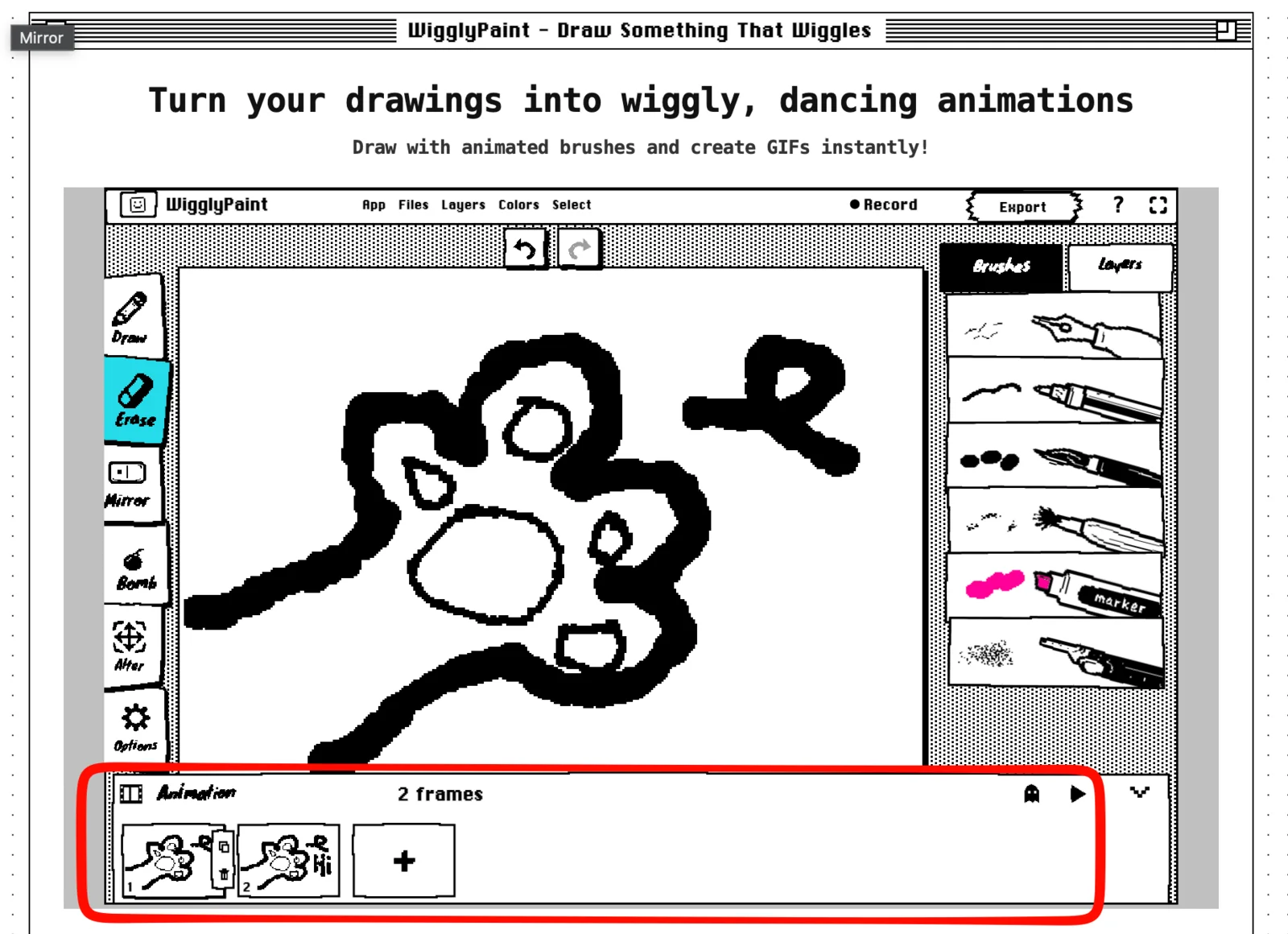
You can make an animated drawing in WigglyPaint by drawing a few pictures called frames. Each frame is a little different. When WigglyPaint plays them in order, your drawing moves.
You draw every frame yourself. WigglyPaint does not use AI to make the animation, change an image into an animation, or create a video. This guide shows every click from the first drawing to the final GIF.
Quick start: make an animation in one minute
1. Open WigglyPaint and click Click to start drawing.
2. Open the Animation panel at the bottom of the screen.
3. Draw your first picture.
4. Copy the frame and change one small part of the drawing.
5. Click the play button to watch the loop.
6. Click Export to save the animation as a GIF.
What is a frame-by-frame animation?
A frame is one drawing. A frame-by-frame animation uses several drawings to make movement.
For example, draw open eyes in the first frame and closed eyes in the next frame. When the two frames play one after the other, the face looks like it is blinking.
WigglyPaint adds movement in two ways:
- The brush lines wiggle by themselves.
- The Frames panel plays your different drawings in order.
You can use the Frames panel to make a character wave, a flower open, a ball bounce, or a face change its expression.
What can I make in WigglyPaint?
WigglyPaint is a free frame-by-frame animation website that works in your browser. You do not need to install a desktop program.
You can:
- add a new frame;
- copy a frame;
- delete a frame;
- see the last frame as a light gray guide;
- play the frames as a loop;
- export the loop as a GIF; and
- share the finished GIF with the WigglyPaint Community.
It works best for short animated doodles, stickers, reactions, characters, and simple movement tests. It is not made for long movies or projects with a large editing timeline.
Before you start
- Use a desktop browser for this guide. The controls are easier to see on a larger screen.
- Start with one object and one action, such as a blinking face or a bouncing dot.
- Use two or three colors. A simple drawing is easier to animate.
- You do not need perfect art. Clear movement is more important than perfect lines.
How to animate a drawing step by step
1. Start a new drawing
- Click: Open WigglyPaint and select Click to start drawing.
- You should see: The full drawing canvas and its tools.
- Next: Choose a brush and a color.
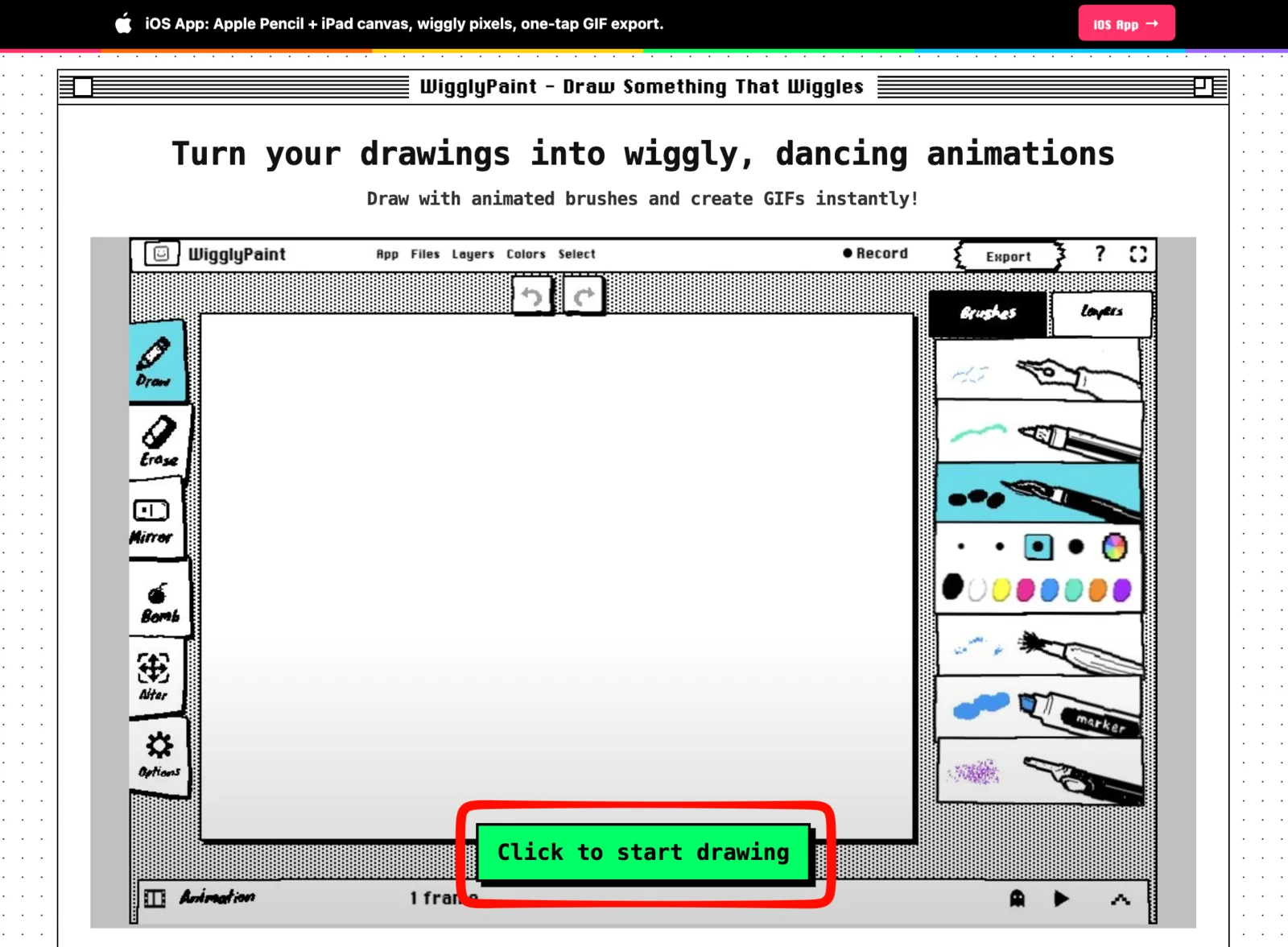
Draw something large and simple. A face, star, flower, or ball is a good first choice.
2. Open the Animation panel
- Click: Select the Animation bar at the bottom of the editor.
- You should see: A row of small frame pictures, a play button, an onion skin button, and a large plus button.
- Next: Make sure the first frame is selected.
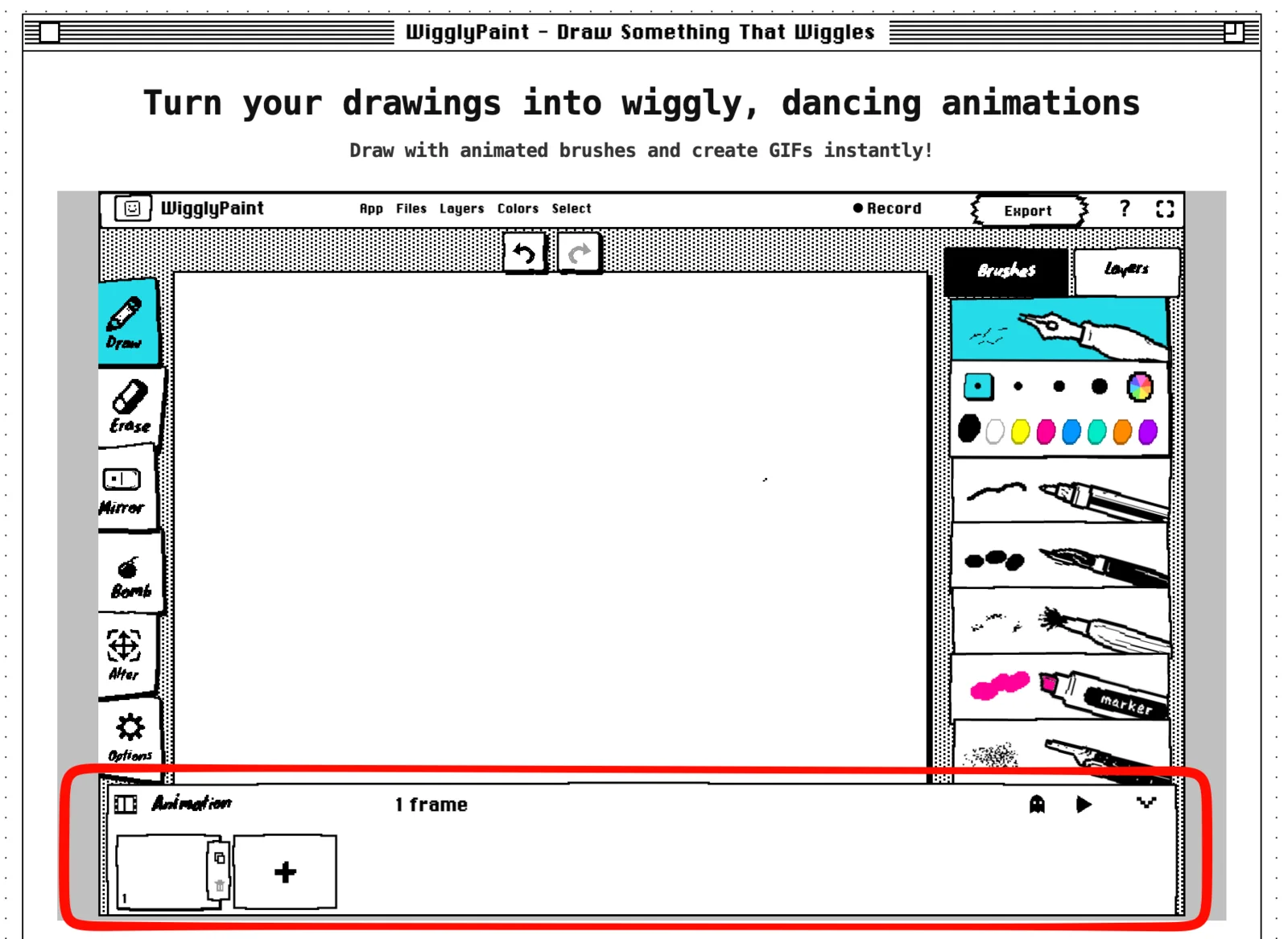
The frame with the selected border is the frame you are changing now. Click a different frame picture when you want to edit that frame.
3. Draw the first frame
- Do: Draw the starting position of your object or character.
- You should see: Your drawing on the canvas and inside the first small frame picture.
- Next: Finish the main shape before adding another frame.
For a blinking face, draw the face with both eyes open. For a bouncing ball, draw the ball near the top of the canvas.
4. Copy a frame or add a blank frame
If the next drawing is similar, copy the current frame. Then erase and redraw only the part that moves.
- Click: Use the copy control beside the frame picture.
- You should see: A second frame with the same drawing.
- Next: Change one small part, such as the eyes, hand, or ball position.
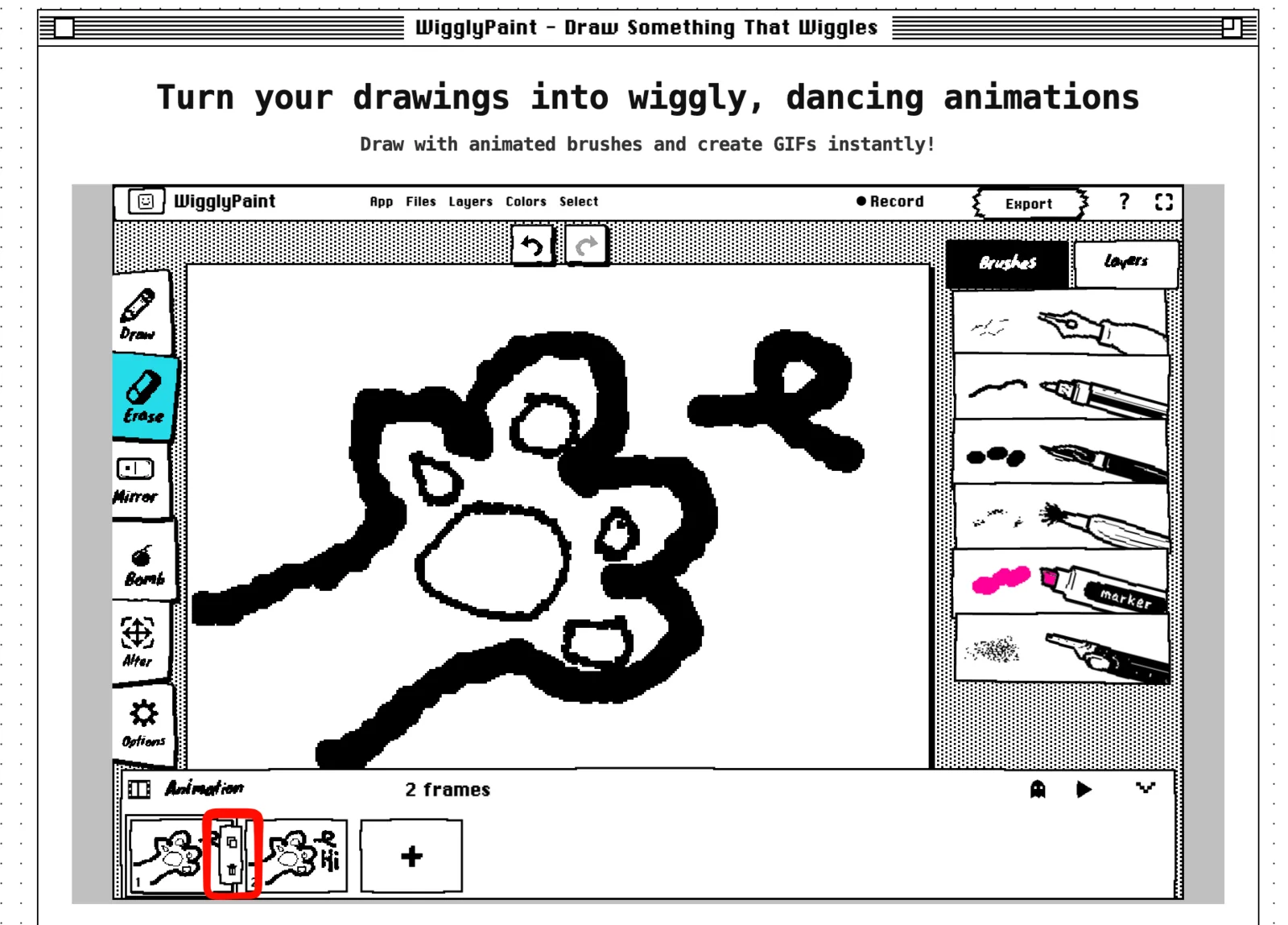
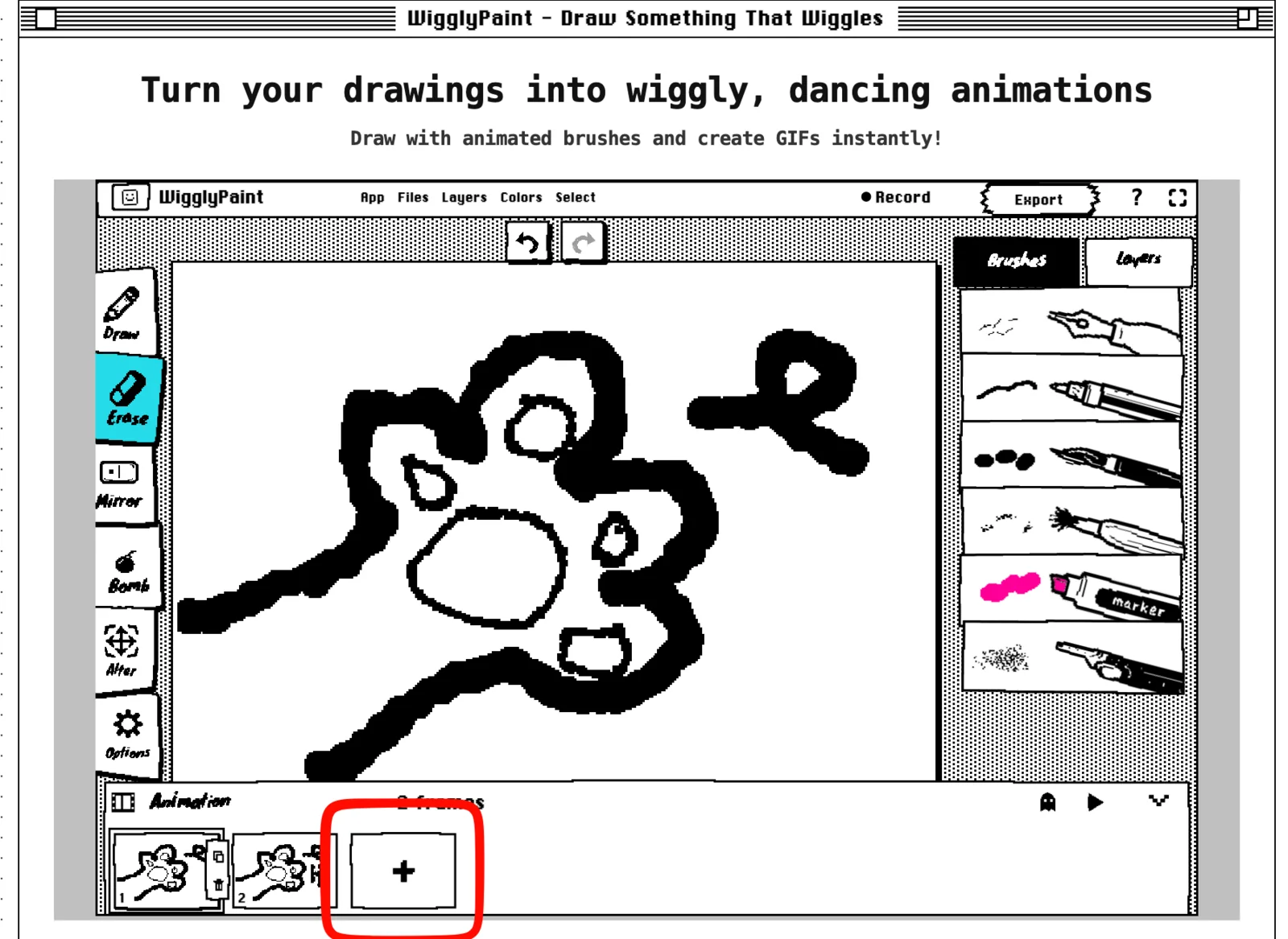
Use the large plus button when you want an empty frame. An empty frame is useful when the next picture will be very different.
5. Turn on onion skin
Onion skin is a light gray view of the previous frame. It helps you see where the old drawing was. The gray guide does not appear in the finished GIF.
- Click: Select the ghost-shaped onion skin button.
- You should see: The previous frame behind the current drawing in gray.
- Next: Draw the new position close to the gray guide for smooth movement.
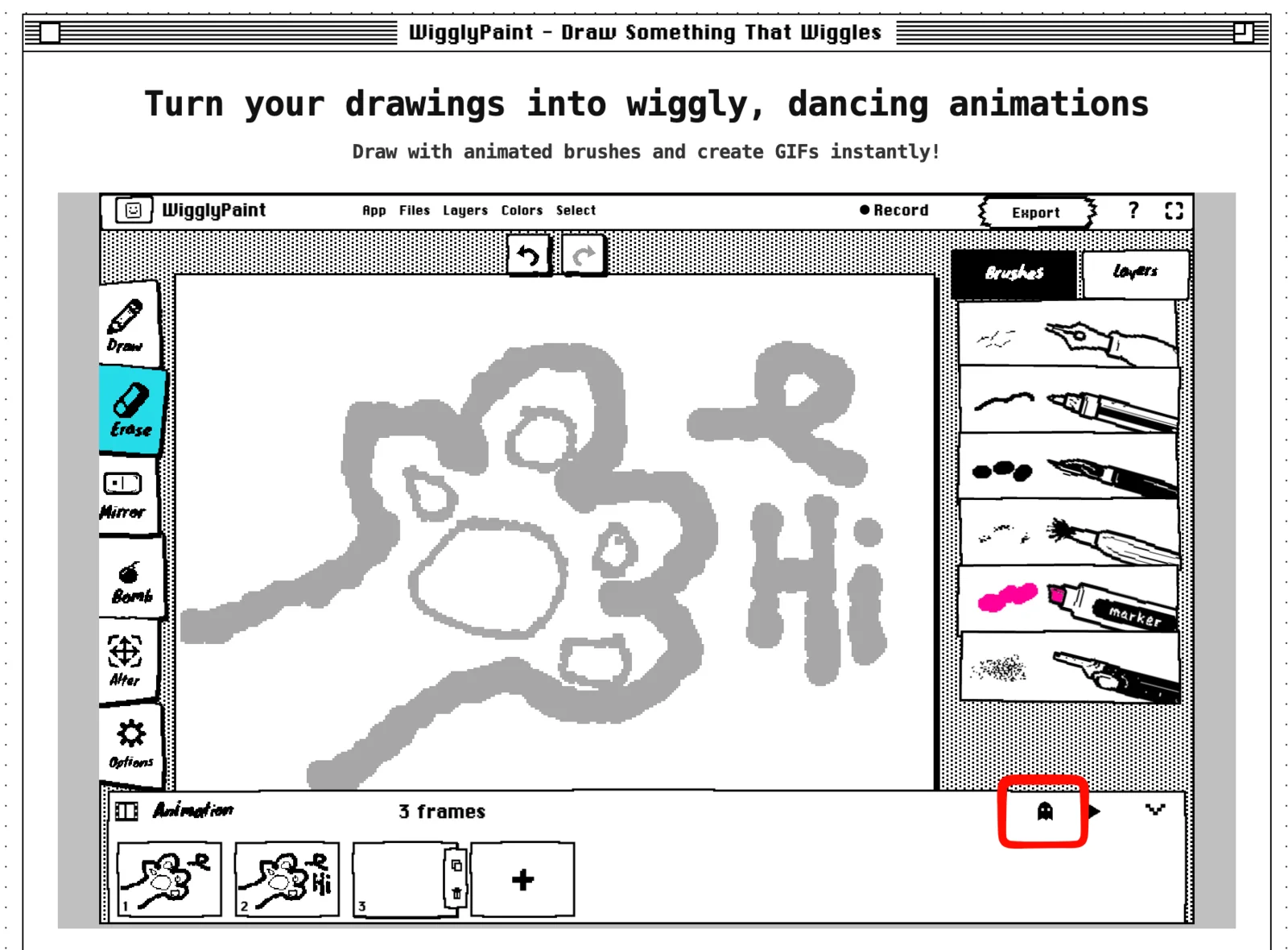
Make a small change between frames for smooth movement. Make a larger change when you want the movement to look faster.
6. Play the animation
- Click: Select the triangle-shaped play button.
- You should see: The frames play in order and repeat.
- Next: Watch the change from the last frame back to the first frame.
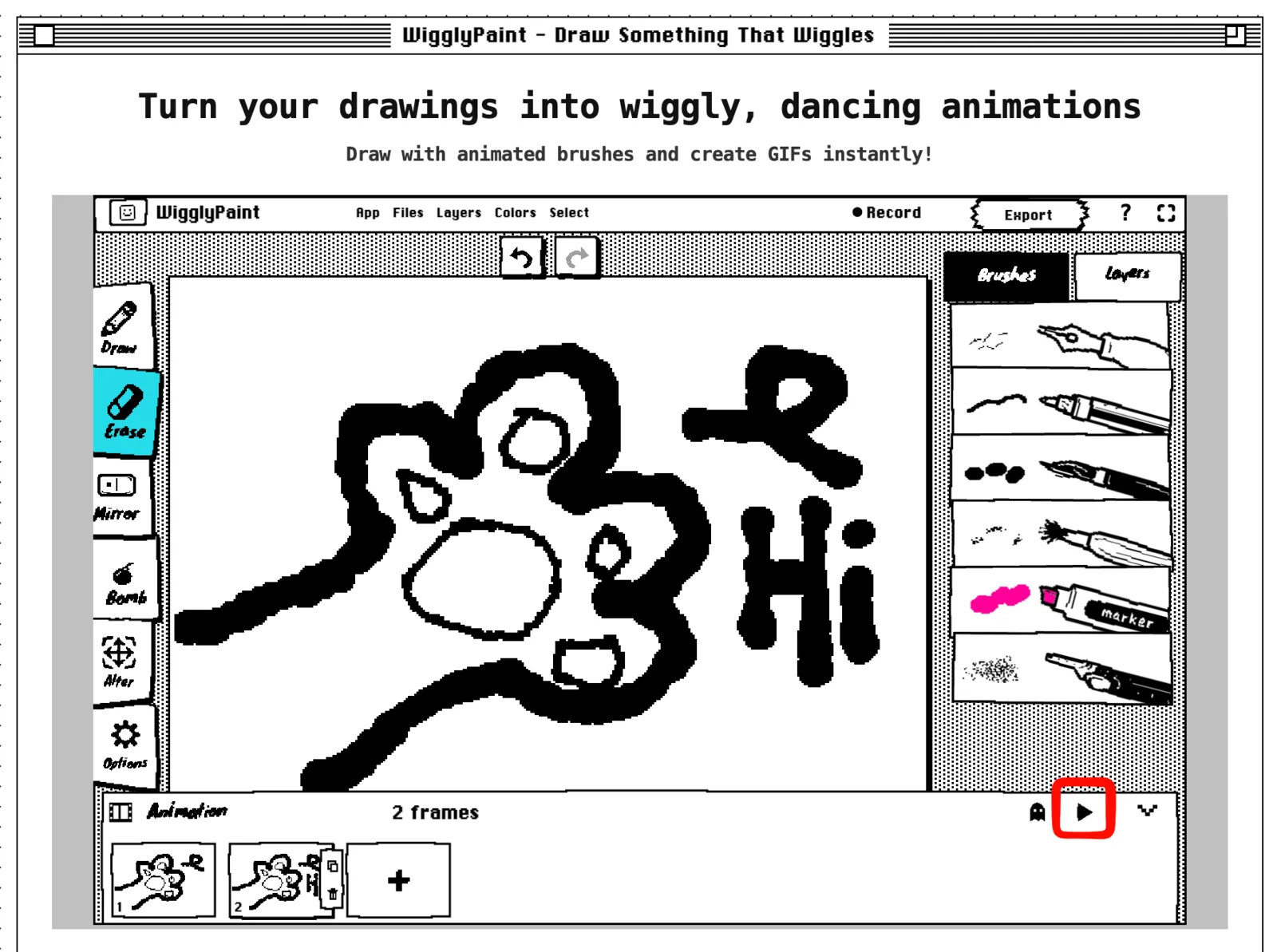
If the animation jumps, compare the last drawing with the first drawing. Move the last drawing closer to the first one, or add another frame between them.
7. Make a frame stay longer
WigglyPaint does not have a separate speed control for each frame yet. To keep one drawing on screen for longer, copy that frame.
- Do: Select the frame you want to hold, then copy it one or more times.
- You should see: Two or more frame pictures with the same drawing.
- Next: Click play and check whether the pause feels long enough.
For example, copy the open-eye frame two or three times. Keep the closed-eye frame only once. The face will keep its eyes open longer and blink quickly.
This is a simple way to control the timing without learning FPS or other animation settings.
8. Export the animated drawing
- Click: Select Export after the loop looks right.
- You should see: Options to save or share the finished work.
- Next: Save the animation as a GIF, or share it with the WigglyPaint Community.
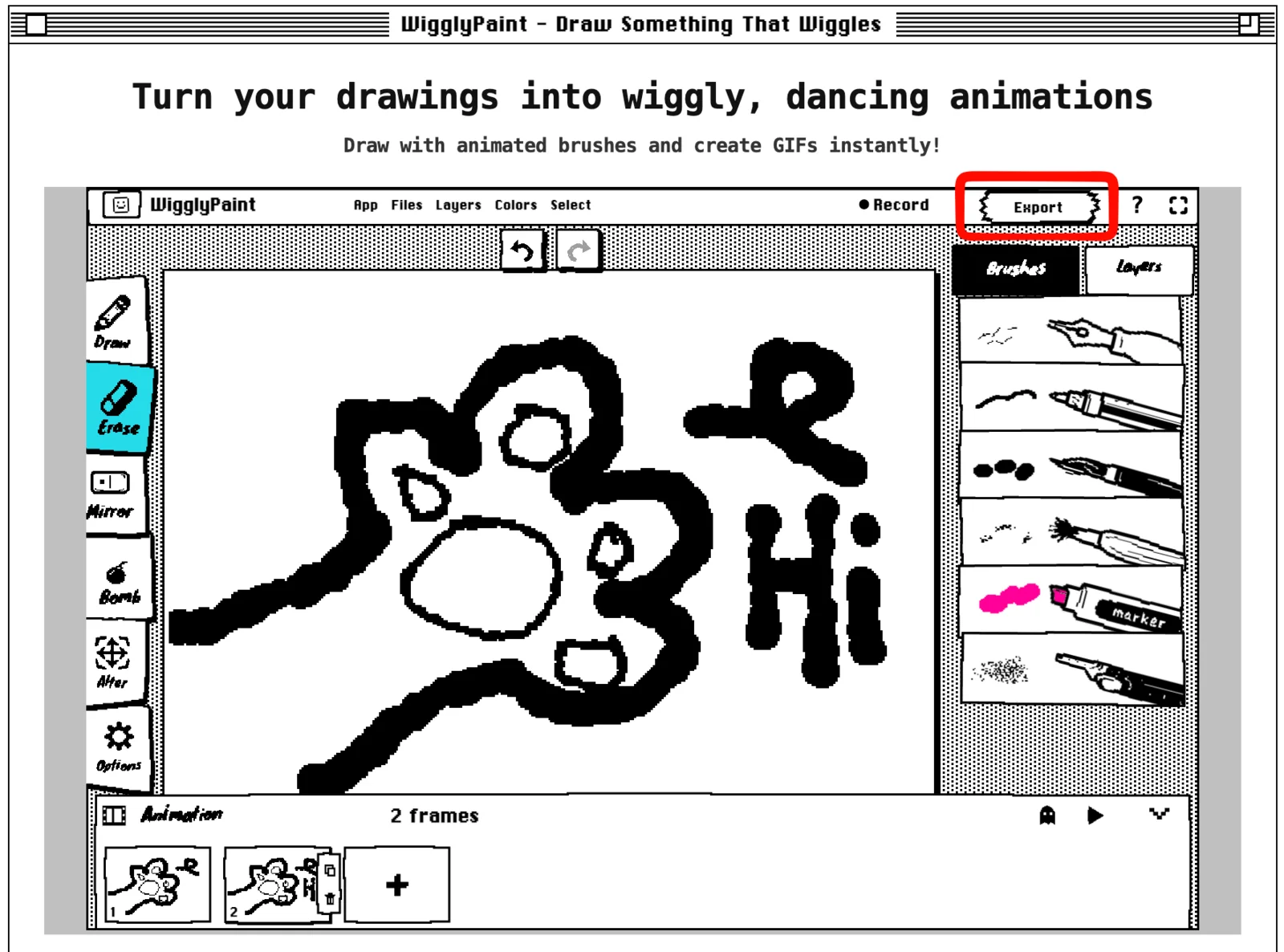
Open the saved GIF once. Check that the drawing is easy to see and that the loop does not make a large jump.
Frame-by-frame animation example: make a blinking face
A blinking face is a good first project because most of the drawing stays still.
- Draw a face with both eyes open.
- Copy the frame.
- In the new frame, draw the eyes half closed.
- Copy that frame and draw the eyes fully closed.
- Copy the half-closed frame and place it after the closed frame.
- Click play. The order should be open, half closed, closed, half closed.
- Copy the open-eye frame if the face is blinking too often.
You can use the same idea for a flower that opens, a star that pulses, or a character that takes a breath.
Easy tips for a smoother animation
- Change only one main part at a time.
- Keep parts that do not move in the same place.
- Turn on onion skin before drawing the next frame.
- Click play after making two or three frames. Do not wait until the end.
- Copy a frame when you want the action to pause.
- Use simple shapes so the drawing is still clear at a small size.
If something does not look right
I cannot find the Animation panel
First click Click to start drawing. Then look for the Animation bar at the bottom of the editor and click it to open the frame controls.
The animation is too fast
Copy the frame that you want people to see for longer. Two or three copies make a short pause.
The drawing moves too far between frames
Turn on onion skin. Use the gray copy of the last frame as a guide, and move the new drawing a smaller distance.
The loop jumps at the end
Compare the last frame with the first frame. Make the two drawings more similar, or add one extra frame between them.
I only see one drawing when I press play
Add or copy another frame, then change part of the new frame. The animation needs at least two different drawings to show movement.
What WigglyPaint supports today
| Feature | Available now? |
|---|---|
| Draw each frame by hand | Yes |
| Add, copy, and delete frames | Yes |
| See the last frame as a gray guide | Yes |
| Play a repeating loop | Yes |
| Export a GIF | Yes |
| Share with the Community | Yes |
| AI makes the animation | No |
| Change an image or video into an animation | No |
| Set a different time for each frame | Not yet; copy a frame instead |
| Change FPS | Not yet |
| Export a video | Not yet |
| Edit frames in the mobile app | This guide covers the web version |
Animated drawing FAQ
How do I animate a drawing?
Draw the first picture, copy or add a frame, and change part of the new drawing. Add more frames if needed. Click play to check the movement, then export the loop as a GIF.
Is WigglyPaint a free frame-by-frame animation app?
WigglyPaint is a free drawing and animation tool that runs in a web browser. You can create a short frame-by-frame animation without installing a desktop app.
Do I need to download frame-by-frame animation software?
No. Draw and animate on the WigglyPaint website. When you finish, download your animation as a GIF.
Can I use a reference for frame-by-frame animation?
Yes. Onion skin shows the previous frame in light gray. Use this gray drawing as a reference when you draw the next frame.
Does WigglyPaint use AI to create the animation?
No. You draw every frame yourself. WigglyPaint gives you animated brushes, frame controls, onion skin, loop preview, and GIF export.
How many frames should a beginner use?
Start with three to five different frames. That is enough for a blink, a small bounce, or another simple loop.
Can I change the animation speed?
There is no FPS or frame-time control yet. Copy a frame to keep that drawing on screen for longer.
Does the animation repeat?
Yes. The preview repeats the frames so you can check the change from the last frame back to the first.
What file can I export?
WigglyPaint exports the animated drawing as a GIF. This frame workflow does not export a video.
Make your first animated drawing
Start with three frames and one small change. Draw a face, copy it, change the eyes, and click play. After that works, add one more frame or copy a frame to improve the timing.
Draw one idea, then make it move
Open the Animation panel, make a short loop, and export your drawing as a GIF.
Start Drawing for Free