1. Introduction
WigglyPaint is designed with a unique "physics-based" brush engine that makes every stroke you draw wiggle and jitter automatically. Whether you are looking for fresh pixel art ideas or trying to bring your cute pixel art to life, this tool adds instant personality to your work with zero extra effort. It’s quite simply the best tool for animated pixel art lovers who want to spend more time creating and less time keyframing.
2. Getting Started: From Zero to Wiggling in Seconds
WigglyPaint is all about speed. Forget menu-diving or sitting through hour-long tutorials. It’s just you, a blank canvas, and a set of tools built to make your art move the moment your pen hits the screen.
Plus, if you’re on the move, we’ve got dedicated iPhone and iPad apps that feel incredibly fluid with an Apple Pencil.
The Toolkit
We’ve stripped the UI down to the essentials so you can focus on nailing that cute pixel art aesthetic without the clutter.
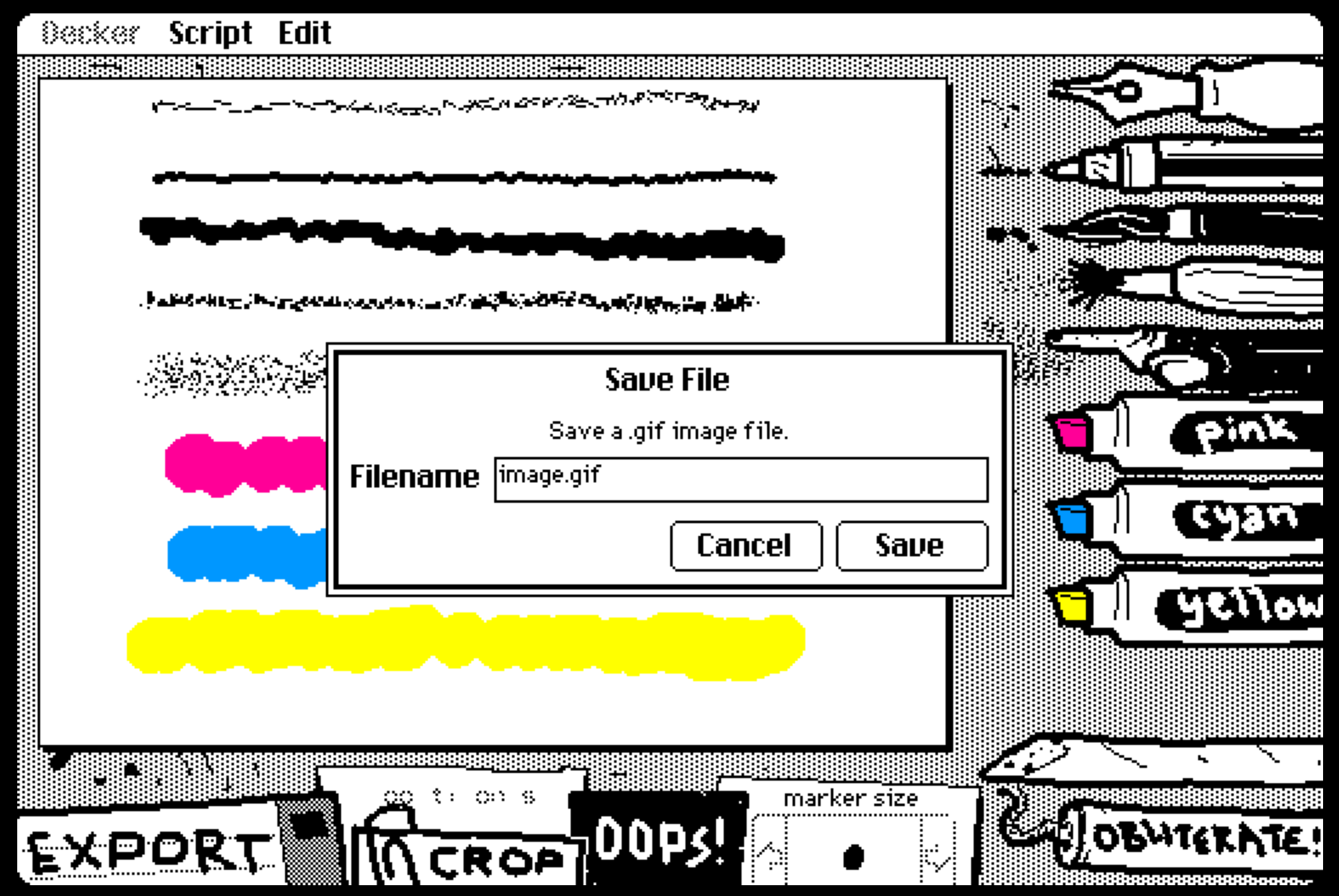
- The 6 Magic Brushes: These are the soul of the app. You get six distinct styles, each with its own "personality"—some give a subtle jitter, while others wave more aggressively. Messing around with these is the best part.
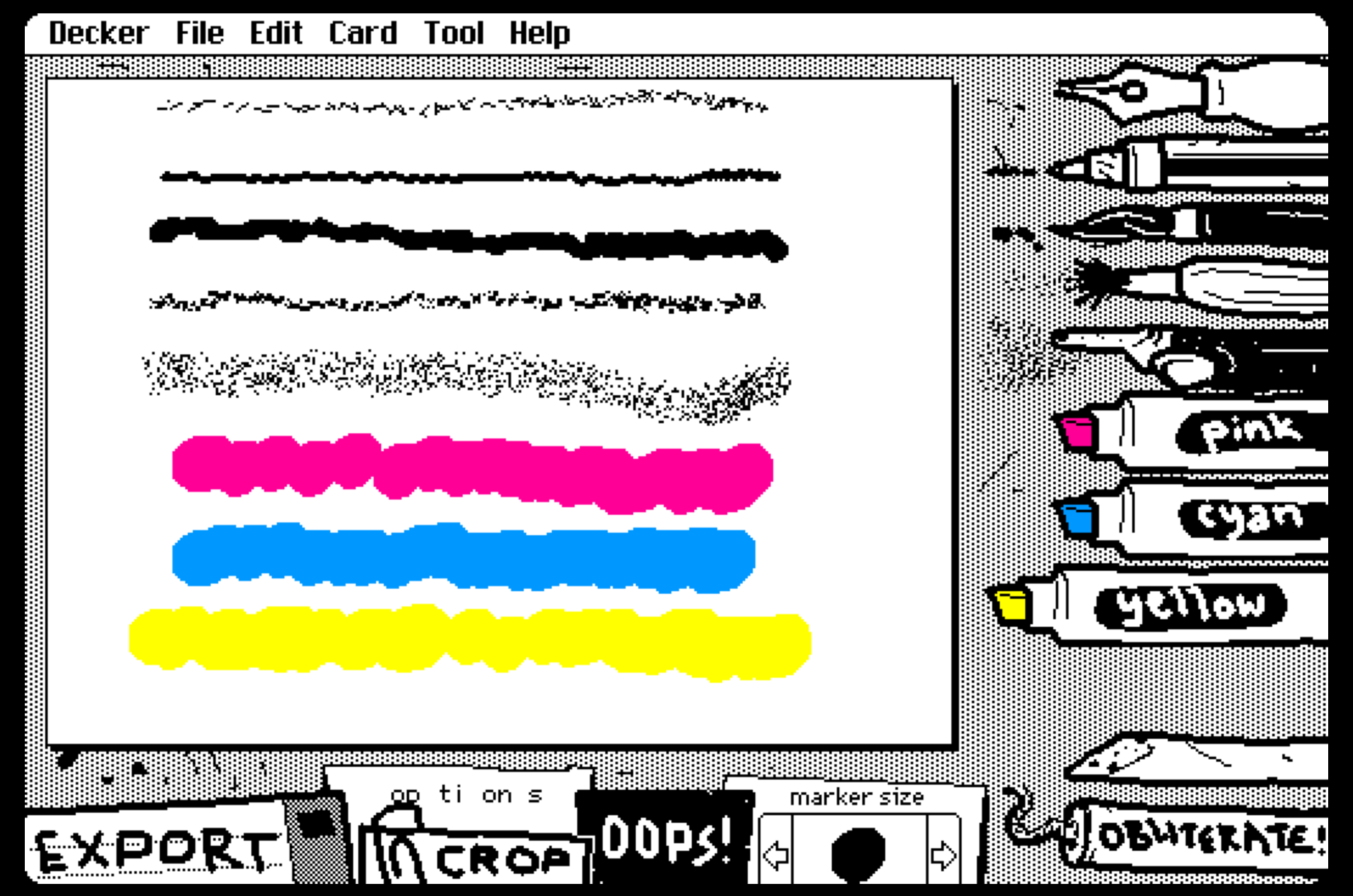
- Marker Size: Just use the slider at the bottom to dial in your stroke. Whether you’re sketching fine details or bold outlines, it’s quick and responsive.
- Clean-up Crew: Hit Oops to undo, or grab the Eraser for surgical fixes. If you’ve completely lost the plot, the Obliterate button nukes the canvas so you can start fresh.
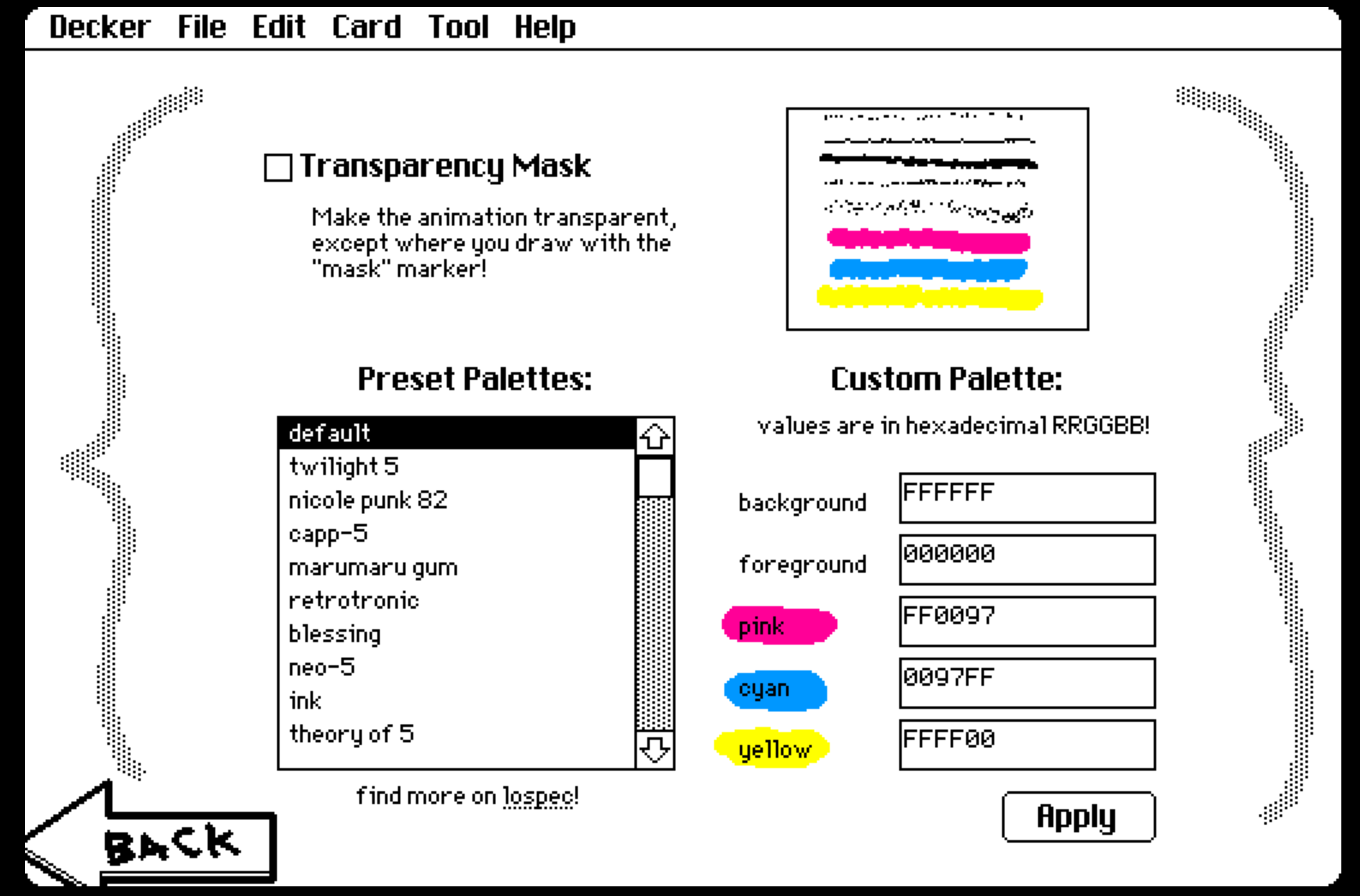
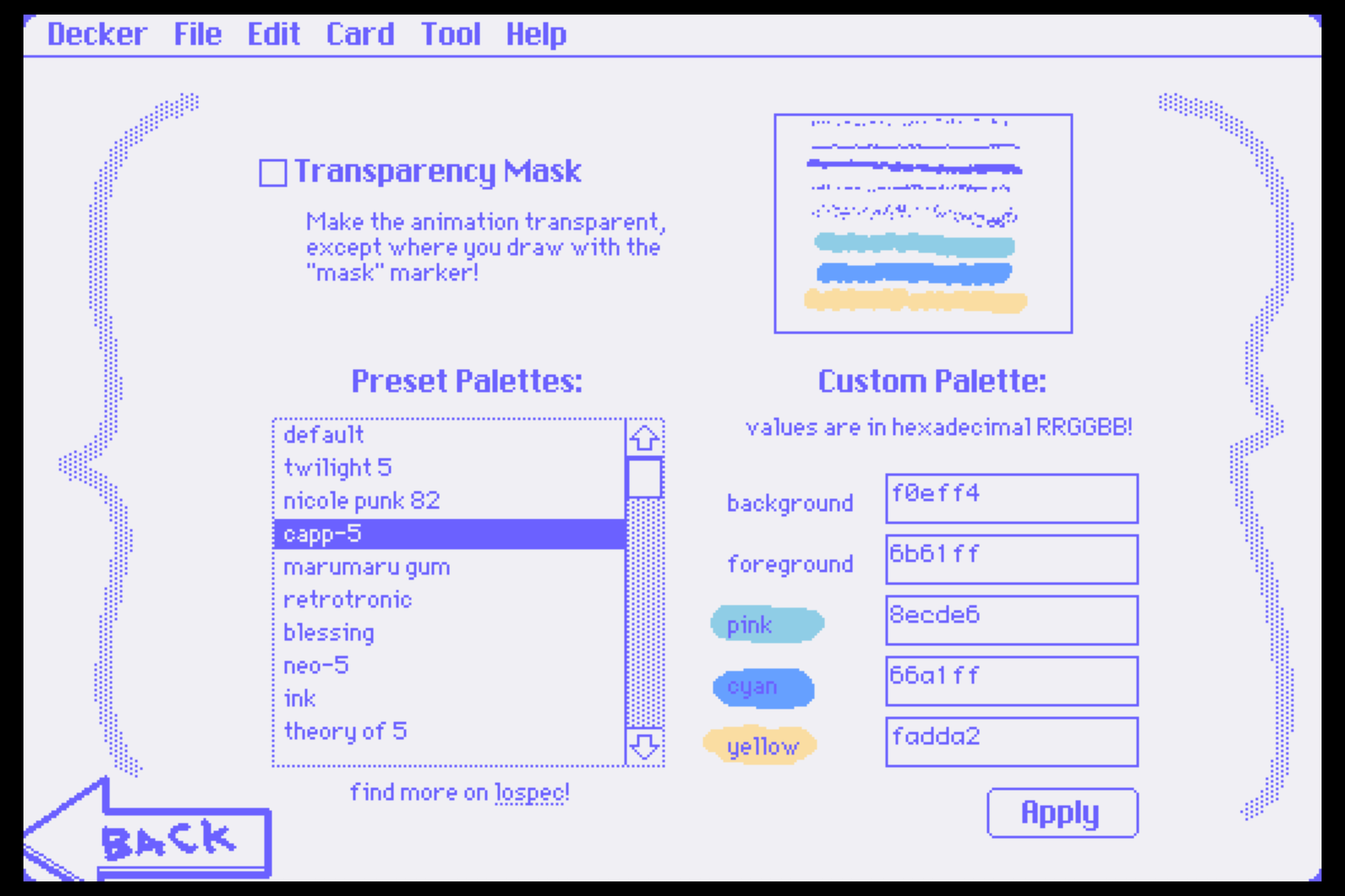
- Set the Vibe: Head into Options. You can toggle through presets or paste in your own hex codes (RRGGBB) to get the background color exactly right.
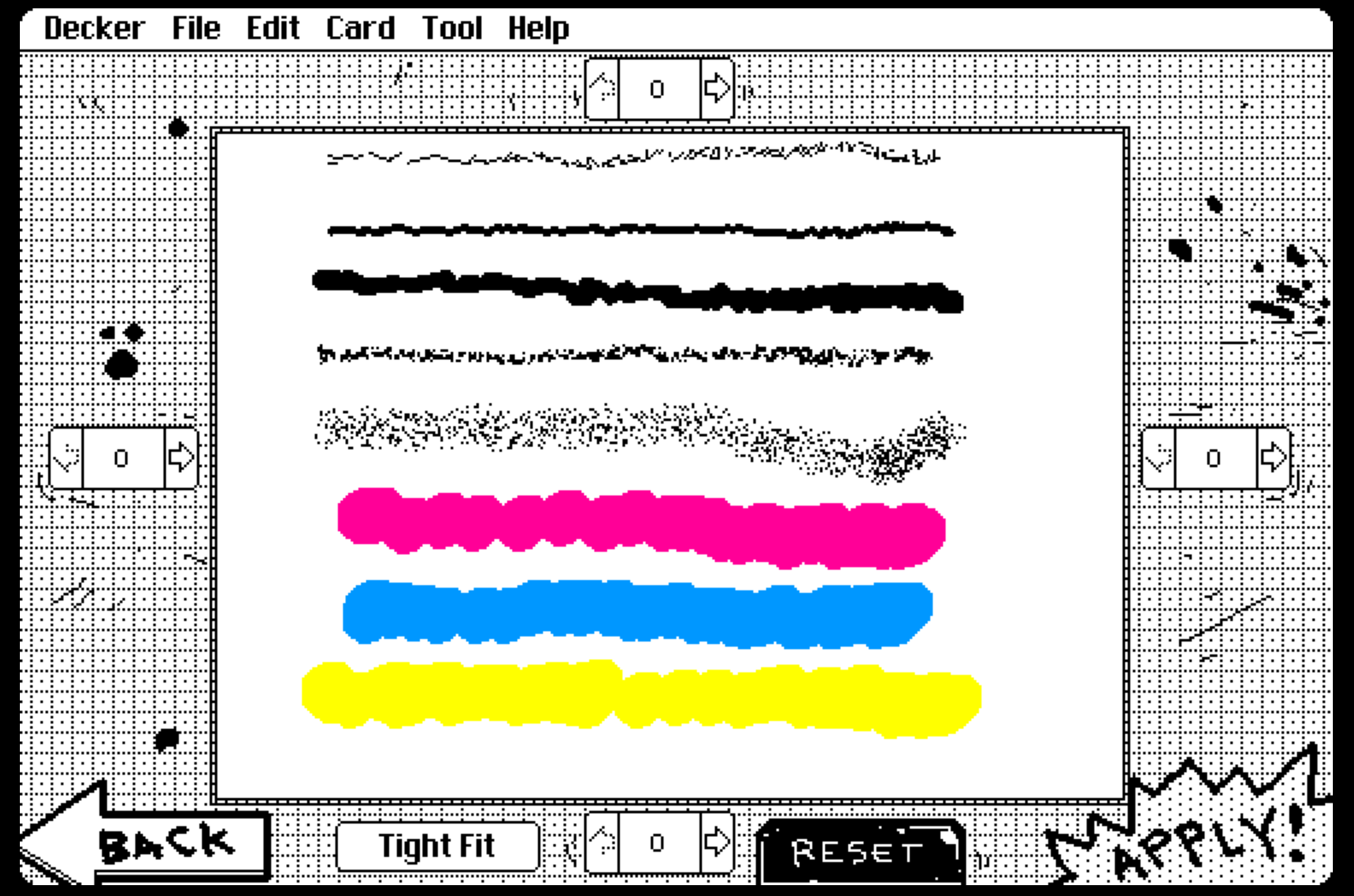
- Final Touches: Use the Crop tool to frame it perfectly. Then hit Export and your GIF is ready for the world.
Your First 60 Seconds
- Grab a brush: Don’t overthink it—pick one and scribble to see how the lines behave.
- Size it up: Adjust the Marker Size until the weight feels right for your sketch.
- Let it rip: Draw a simple blob, a star, or a smiley face, and watch it instantly start dancing.
Pro tip: While the web version is great for quick doodles, WigglyPaint also has dedicated iPhone and iPad apps. If you’re a fan of drawing with an Apple Pencil, the app version feels incredibly fluid—it’s like your sketches are coming to life right under your pen.
3. Creative Ideas & Drawing Tips
The best part about WigglyPaint is that you don’t have to worry about the "physics" of animation—the tool does the heavy lifting. If you’re looking for some pixel art ideas to test out the brushes, here’s what works best:
Things That Look Great with a Wiggle
- The Classic Jelly Slime: Just draw a rounded blob. The shifting lines give the character a squishy, "alive" feel that’s impossible to get with static pixels.
- Twinkling Stars: Grab the smallest brush and tap the canvas. The natural jitter creates a perfect sparkling effect—ideal for a "lo-fi" night sky vibe.
- Floating Ghosts or Cats: Keep the shapes simple. A chubby cat or a tiny ghost works so well because the wiggle mimics that "hand-drawn" animation style without you actually having to draw ten different frames.
How to Keep Your Art From Looking Messy
- Go Easy on the Details: Since every line you draw will be moving, a crowded drawing can get chaotic fast. Cute pixel art usually looks best when it’s minimalist.
- Contrast is Key: Use the Options menu to pick a background that makes your colors pop. High contrast pastels (like mint green on a dark purple background) make the animation look much sharper.
- Line Weight Matters: Use a thick marker for the main outline and a thinner one for facial expressions or small details. It gives the animation more depth.
4. Exporting & Showing Off
Once you’re happy with your doodle, getting it off the site is the easiest part.
- Zero-Effort GIFs: Just hit Export. There’s no waiting for rendering or messing with settings. You get a clean GIF immediately.
- Where to Use Them: These are the perfect size for Discord stickers or custom Twitter avatars. They also look great pinned to a profile or shared in a group chat.
Stop keyframing, start wiggling. Give your art the personality it deserves in seconds. No sign-up, no stress—just pure creativity.